

 Add as preferred on Google
The Future of Education Technology in 2027: How AI Is Changing Learning for All AgesRead More
In this blog, we will learn how to integrate Cucumber with Playwright. The goal is to start a very simple project with a very simple scenario. The idea is to start from scratch, configure everything, and learn how it works.
Before writing our tests, let’s refresh our knowledge. Cucumber is a behavior-driven development (BDD) testing framework that allows testers, developers, and business analysts to define automated acceptance test scenarios or test cases in simple English (Gherkin syntax).
Gherkin syntax is a simple, human-readable language used in behavior-driven development (BDD). It uses keywords like Feature, Scenario, Given, When, Then, And, But, Background, and Examples to arrange executable specifications in plain text (.feature files). It connects technical and non-technical teams and helps them understand the system by defining behavior using cause-and-effect steps. It describes acceptance criteria or user stories as testable scenarios, making automated tests clear, consistent, and maintainable for everyone.
Create a folder on your machine for your project and name it, for example,
playwright_cucumber_testing.Open the terminal and run the following command:
npm init -yThis creates a Node.js project and generates a package.json file with basic metadata.
Install Cucumber using the following command:
npm install -D @cucumber/cucumberInstall ts-node using the following command:
npm install -D ts-node
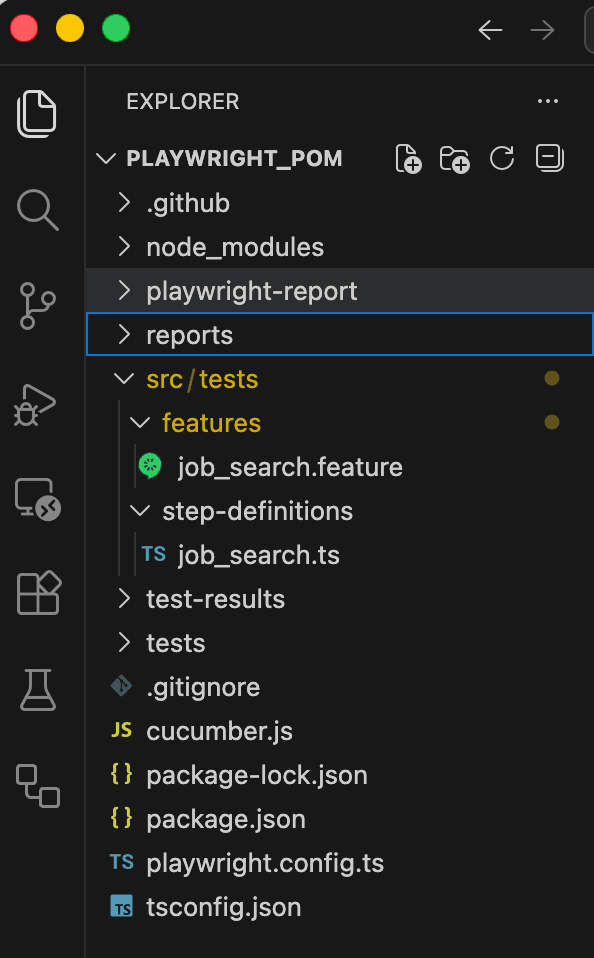
In your project, create a src folder for the source code, and inside it, create a tests folder. Then, create the following two folders inside the tests folder:
features
Holds .feature files
step-definitions
Holds .ts files for step definitions
Create chat.feature inside the features folder and chat.ts inside the step-definitions folder.
See the screenshot below for the file structure.
In your project, create a tsconfig.json file and configure the TypeScript compiler options:
Include everything under the src directory
Exclude the node_modules directory
Add the following code to your tsconfig.json file:
    {
    "compilerOptions": {
        "target": "ES2020",
        "module": "CommonJS",
        "strict": true,
        "esModuleInterop": true,
        "outDir": "dist"
    },
    "include": ["src/**/*"],
    "exclude": ["node_modules"]
    }
Now, create a cucumber.json file and add the following code to it:
{
 "default": {
        "paths":[
            "src/tests/features"
        ],
        "dry-run": false,
        "formatOptions": {
            "colorsEnabled": true,
            "snippetInterface": "async-await"
     },
        "require": [
            "src/tests/step-definitions/*.ts"
        ],
        "requireModule": [
            "ts-node/register"
        ]
    }
}
Here
"cucumber.features": [
"src/tests/features/*.feature",
],
"cucumber.glue": [
  "src/tests/step-definitions/*.ts"
]
Add the following script to your package.json file to execute Cucumber:
"scripts": {
  "cucumber": "cucumber-js"
}We will use a simple website (Arbisoft’s Hirestream) to test the job search functionality.
Job_search.feature file:
Feature: Job Search
 User should be able to search for jobs on Hirestream

 Scenario: Search for a job
   Given A user is at the arbisoft's hirestream page page
   When A user searches for a "Product Manager" and clicks on the search button
   Then the page show display available vacancies
Job_search.ts file:
import {
   Given,
   When,
   Then,
 } from "@cucumber/cucumber";

 import { Page, Browser, chromium, expect } from "@playwright/test";

 let browser: Browser;
 let page: Page;

Given("A user is at the arbisoft's hirestream page page", async function () {
 browser = await chromium.launch({ headless: false });
 page = await browser.newPage();
 await page.goto('https://arbisoft.hirestream.io/careers/', {
   waitUntil: 'domcontentloaded'
 });
});


 When('A user searches for a {string} and clicks on the search button', async function (job: string) {
   await page.getByRole('searchbox', { name: 'Search' }).click();
   await page.getByRole('searchbox', { name: 'Search' }).fill(job);
   await page.getByRole('button').filter({ hasText: /^$/ }).click();
  });

 Then('the page show display available vacancies', async function () {
 await expect(
   page.getByText('Product Manager', { exact: false })
 ).toBeVisible();
});
Notes:
async/await to handle asynchronous operations in Playwright.job is provided as a parameter in quotes.Then step verifies that the user has successfully navigated to the search results page.
We run the script from package.json. Open the terminal in your IDE and run the following command:
npm run cucumberBy default, tests run in headless mode. To see the browser, set headless: false in Playwright’s launch() options in the job_search.ts file.
You can also slow down execution using Playwright options, if needed.
Let’s add some native reporting to the project in config/cucumber.js:
format: [
"progress-bar",
"summary",
"json:reports/cucumber-report.json",
"html:reports/cucumber-report.html"
]
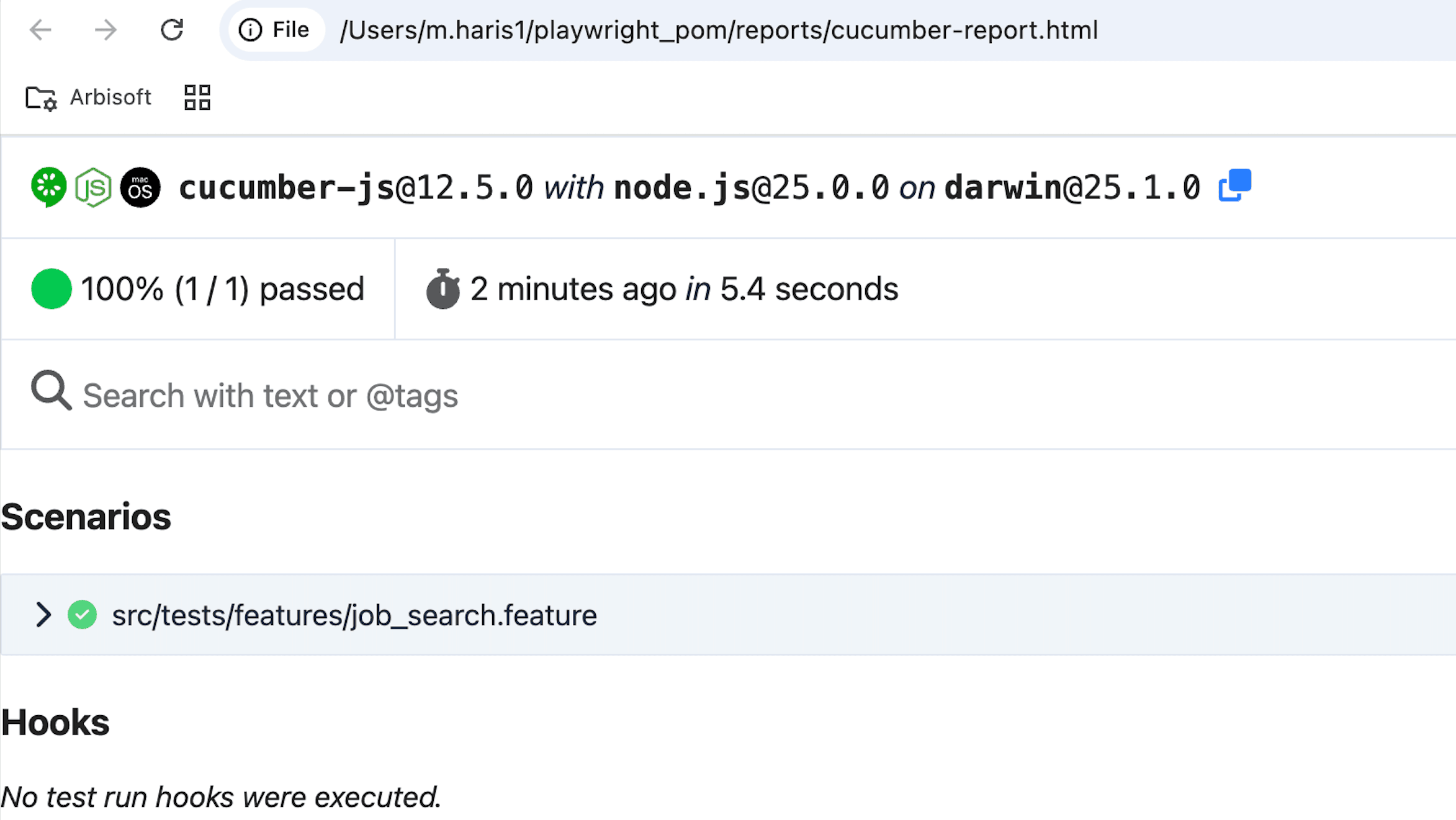
After running the command again:
npm run cucumberThe JSON and HTML reports are generated in the reports folder. These reports display the execution time, Node.js version, and Cucumber test results.
In this blog, we successfully integrated Cucumber with Playwright using TypeScript. We executed a complete end-to-end (E2E) scenario using a real browser, validated application behavior using assertions, and ensured our tests were reliable and readable through BDD practices. This foundation makes it easy to scale our automation framework by adding hooks, page object models, reporting, and CI/CD integration.
Playwright and Cucumber together provide a powerful combination: fast, reliable browser automation paired with clear, business-readable test scenarios. With this setup in place, we are well-equipped to build maintainable and robust test automation for modern web applications
...Loading Related Blogs
Trusted by top platforms for our transformative solutions and exceptional results: