

 Add as preferred on Google
The Future of Education Technology in 2027: How AI Is Changing Learning for All AgesRead More

Have you ever wondered what the Playwright tool is and why everyone is talking about it? Automation is changing, and Playwright is leading the way. But why is it so important? Let’s dive into what Playwright is, explore its amazing features, and see how to set it up and install it. In this blog, I have shared super easy steps to help you understand the installation process, so any beginner can easily follow it.
Applications that the Playwright supports:
Languages that the Playwright supports:
Browsers that the Playwright supports:
OS that the Playwright supports:
To install Playwright, follow the steps:
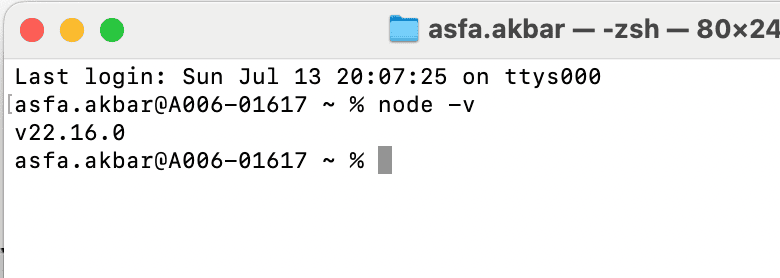
Npm is the node package manager that gets installed along with node. It will show that the node is installed and display its package details.

It will show the version of the node.
Create a folder and open it in VS Code.
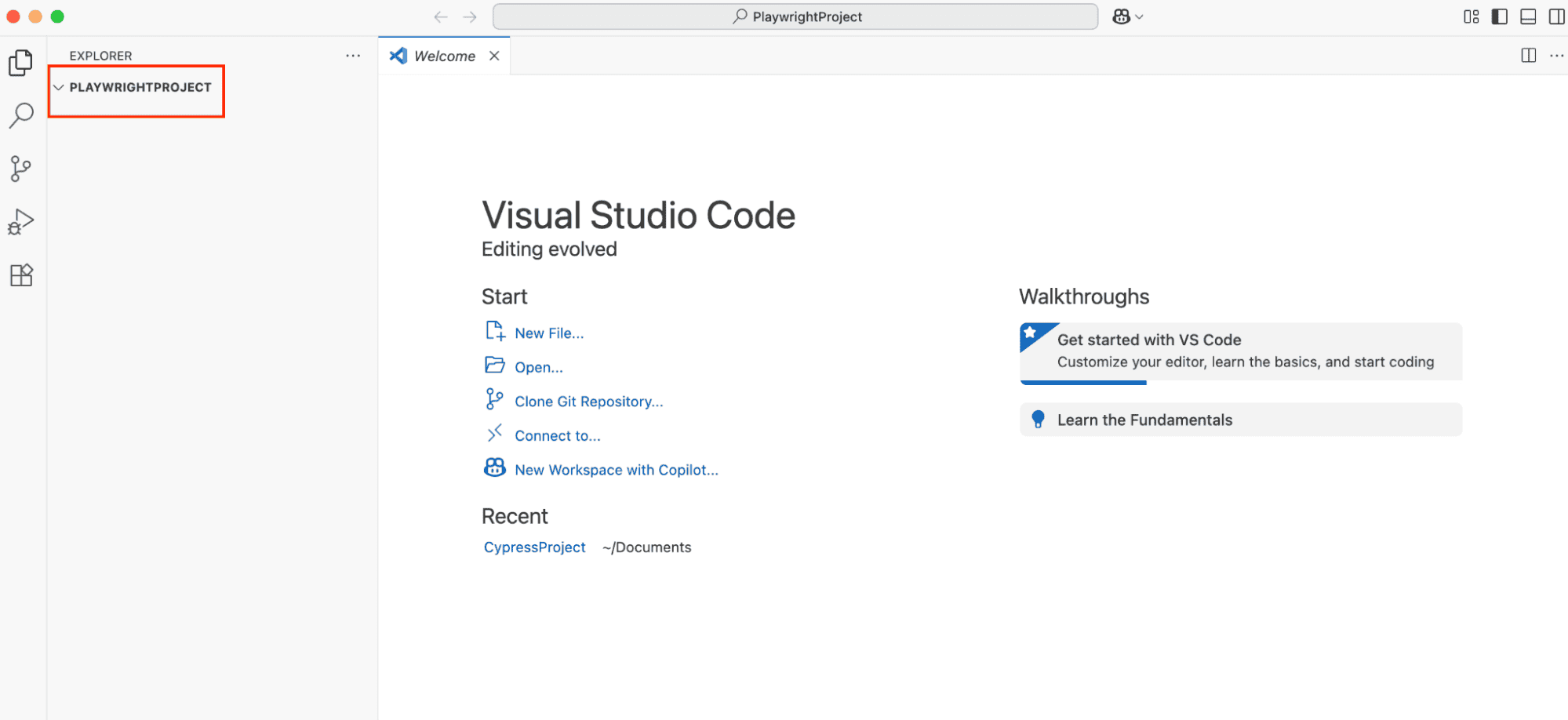
a) Create a folder in VS Code. E.g. PlaywrightProject
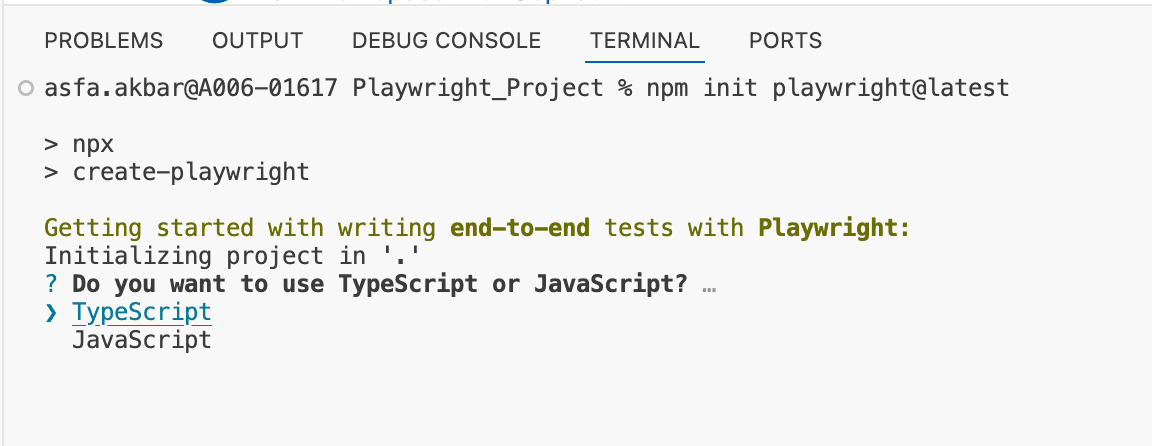
b) Go to the terminal and run commands: npm init playwright@latest.
It will install the latest Playwright.
The Playwright is installed.

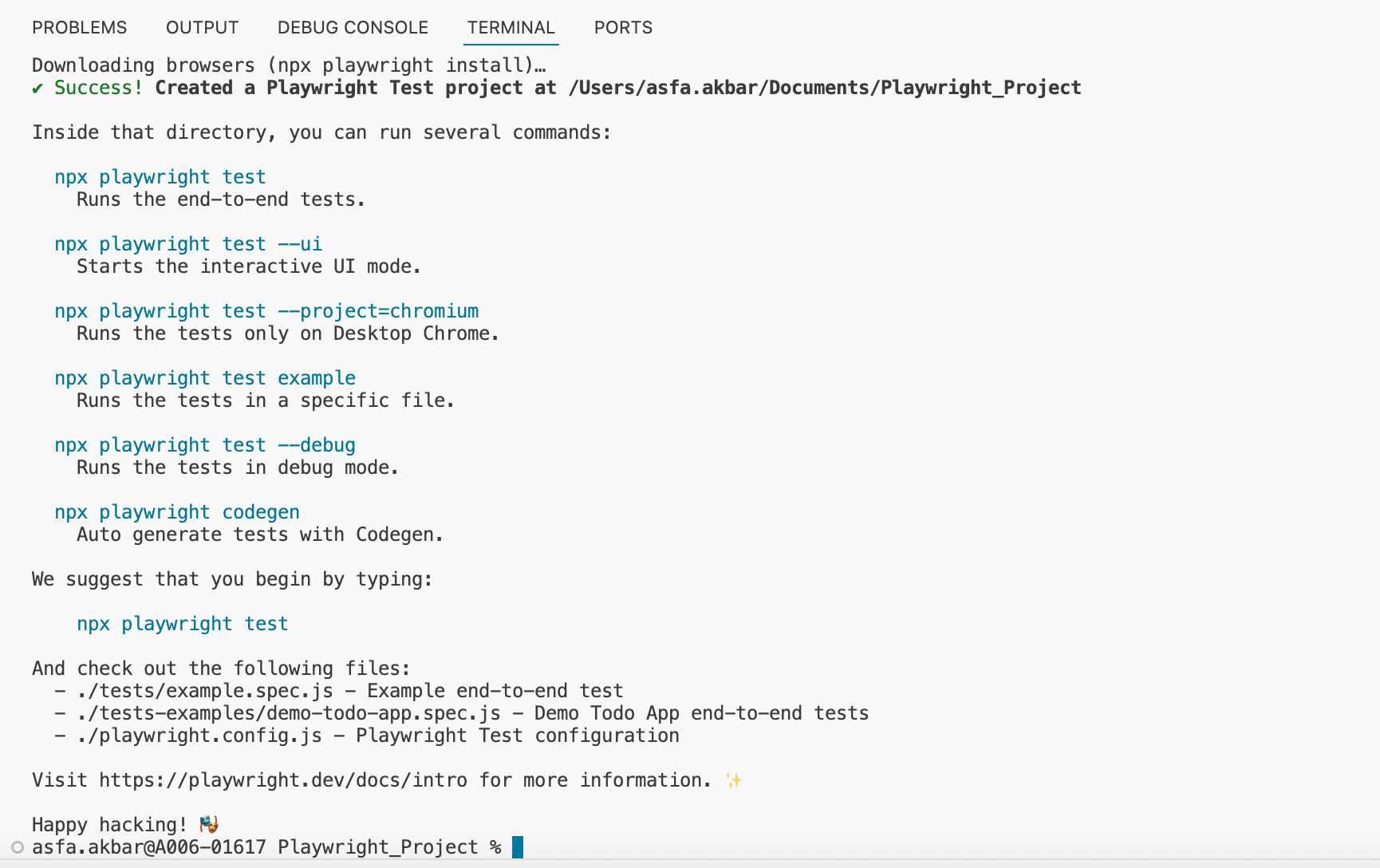
The following are the files that will be added:
c) To check if Playwright is added, run the command: npm playwright -v
It will show the version of Playwright.

d) To check the playwright command options, run the command: npx playwright –help or npx playwright -h
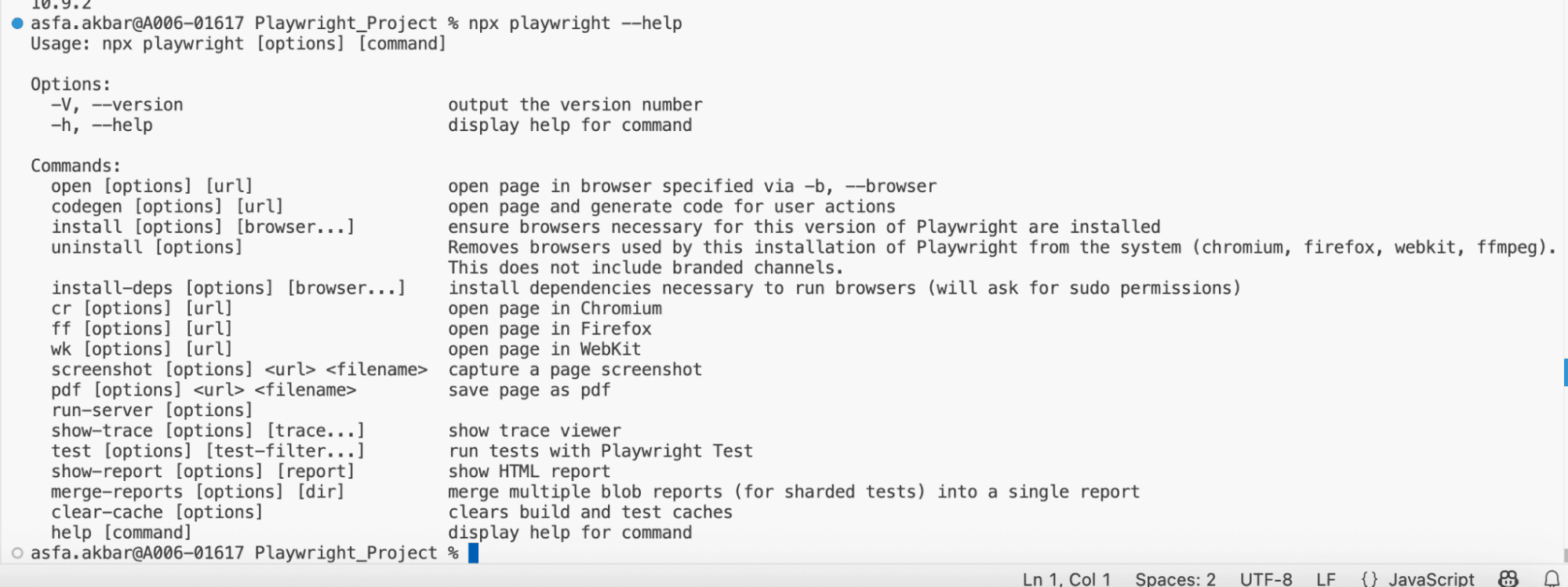
There are very useful commands for running tests in Playwright. There are simple commands to run tests easily. Now, a QA engineer can run single or multiple tests in one or more browsers simultaneously. It is an easy and efficient way to run tests, saving QA time and effort.
The following are the commands:
Command | Description |
| npx playwright test | Runs all tests on all browsers in headless mode |
| npx playwright test --workers 3 | Runs with 3 workers in parallel |
| npx playwright test one.spec.js | Runs a specific test file |
| npx playwright test one.spec.js two.spec.js | Runs the specific file that you want to test |
| npx playwright test one two | Runs files that have one or two (name) in the filename |
| npx playwright test -g check title | Runs test with a matching test title |
| npx playwright show-report | It shows the report of the running test |
| npx playwright test --project=chromium | Runs tests on a specific browser (Chromium) |
| npx playwright test --headed | Runs tests in headed mode (browser visible) |
| npx playwright test --debug | Debug tests that you run |
| npx playwright test example.spec.js --debug | Debug a specific test file |
| npx playwright test example.spec.js:21 --debug | Debugging from a specific test line |
Playwright is a very useful tool for automating test cases. It has significantly reduced the manual effort required to test applications repeatedly. It is easy and convenient for QA engineers to use. Many businesses are moving their automation frameworks to Playwright because of its strengths in automation.
With the help of AI, it has become even easier to use Playwright, as AI has built-in features that assist in writing code. One can use different AI platforms to write test cases here. Using Playwright, anyone can write test cases with the help of AI. This is a significant advancement in the field of automation.
I have described a simple and beginner-friendly way to install Playwright and explained its features and importance. I hope this blog has helped you understand the installation process of Playwright, and that you were able to install it easily just by following my instructions. Thanks for reading!
...Loading Related Blogs
Trusted by top platforms for our transformative solutions and exceptional results: