

 Add as preferred on Google
Odoo Customization Guide for Smarter ERP DecisionsRead More

End-to-end (e2e) testing has become a critical part of modern web development. As applications grow more complex, test automation must evolve to stay reliable, readable, and easy to maintain. This is where Playwright and the Page Object Model (POM) come together as a powerful combination.
Playwright is a fast, modern automation framework built by Microsoft that supports multiple browsers and offers an excellent developer experience. The Page Object Model (POM), on the other hand, is a design pattern that helps organize test code in a clean and scalable manner.
In this blog, we are going to learn how to create a page object model (POM) design pattern or framework using Playwright. The POM is used in test automation. It helps QAs to organize automation tests or test code by separating page objects from the main test code.
In POM, we use a class to represent each web page, and the class contains the elements of the web page, like dropdowns, fields, buttons, and links, etc. It also has actions that are used to perform actions on the page elements, like entering data in a field, clicking on a button, etc.
So, in simple terms, in POM, a test interacts with the respective page class instead of using locators/selectors directly.
In POM, we create one class for one web page. The page class contains locators and actions, whereas the test class uses page methods to perform actions. The test class also contains assertions.
For example:
Without POM (Bad Practice)
With POM (Good Practice)
Let’s start with creating a new folder on your MAC/Windows machine and renaming it, e.g., playwright_API_testing. Open the folder in your IDE, e.g., VS Code. Now, go to the terminal and run the following command:
npm init -y
It creates a package.json file and also initializes a Node project in the folder.
Now, we need a playwright, and I want to install the latest. Run the following command:
After installation, you will see
Now, I am creating a login test. So, I have selected the tests folder. It has one sample test already created. I am adding a new file in the test folder, e.g., arbisoft_chat.spec.js. I am creating test code using codegen. You can also write code manually.
Codegen records over steps and converts them to code. Enter the command below in the terminal to open codegen.
npx playwright codegenand hit enter.
It opens the browser and the test generator in two different tabs.
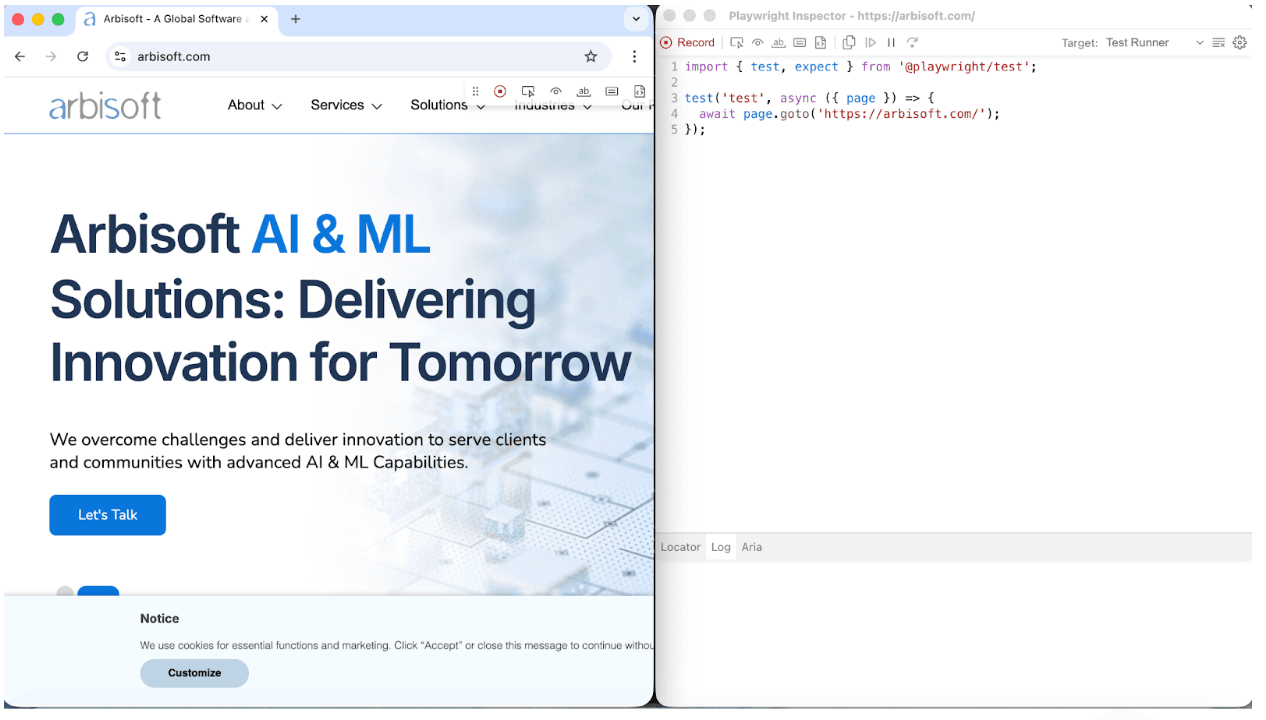
The recording is on by default, and it will record everything that we do in the browser. I have entered a test URL, e.g., arbisoft.com. I am doing below steps.
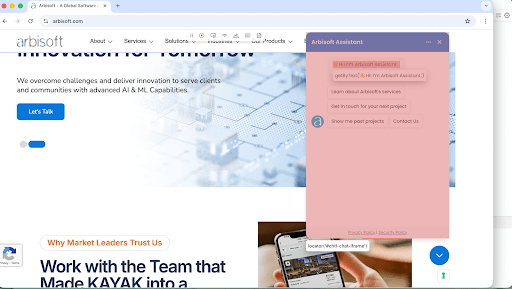
The recorder is still ON. Now, I am stopping the recorder and copying the code generated by codegen. Paste the code in your IDE.
In your IDE, go to the terminal and type the following command
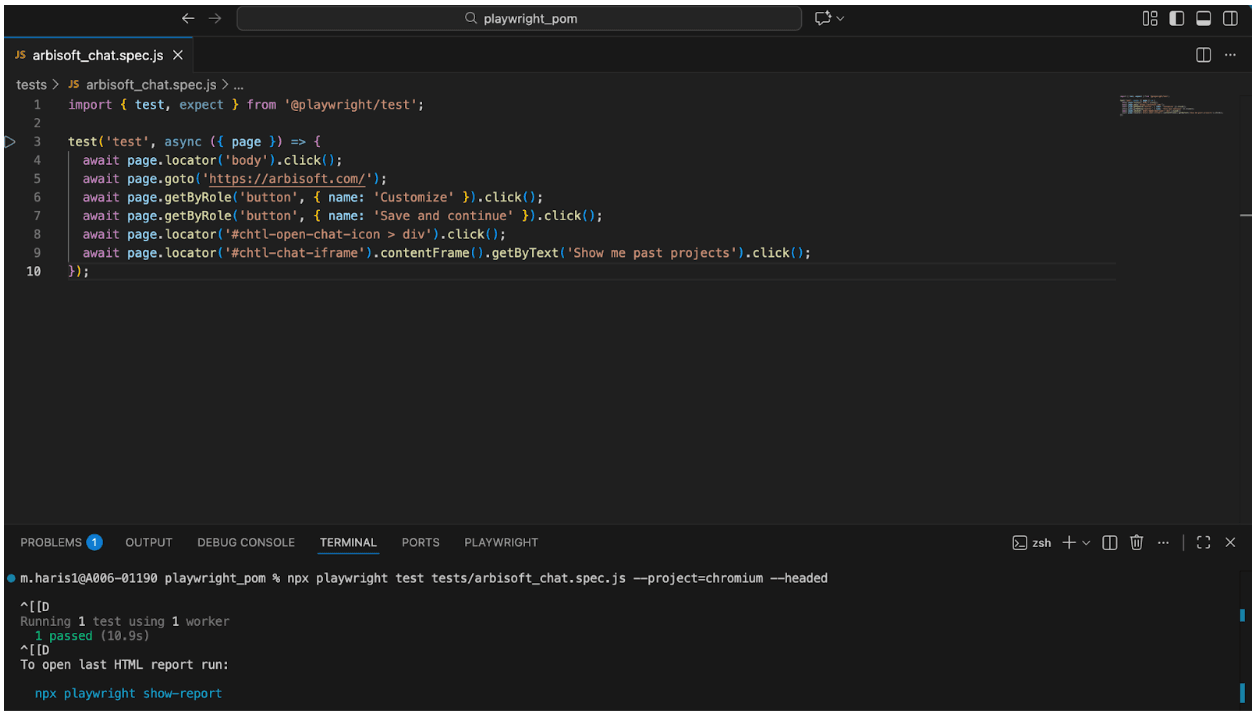
In the project folder, create a folder, e.g., page, and create a file, e.g., arbisoft_chat.js, within it.
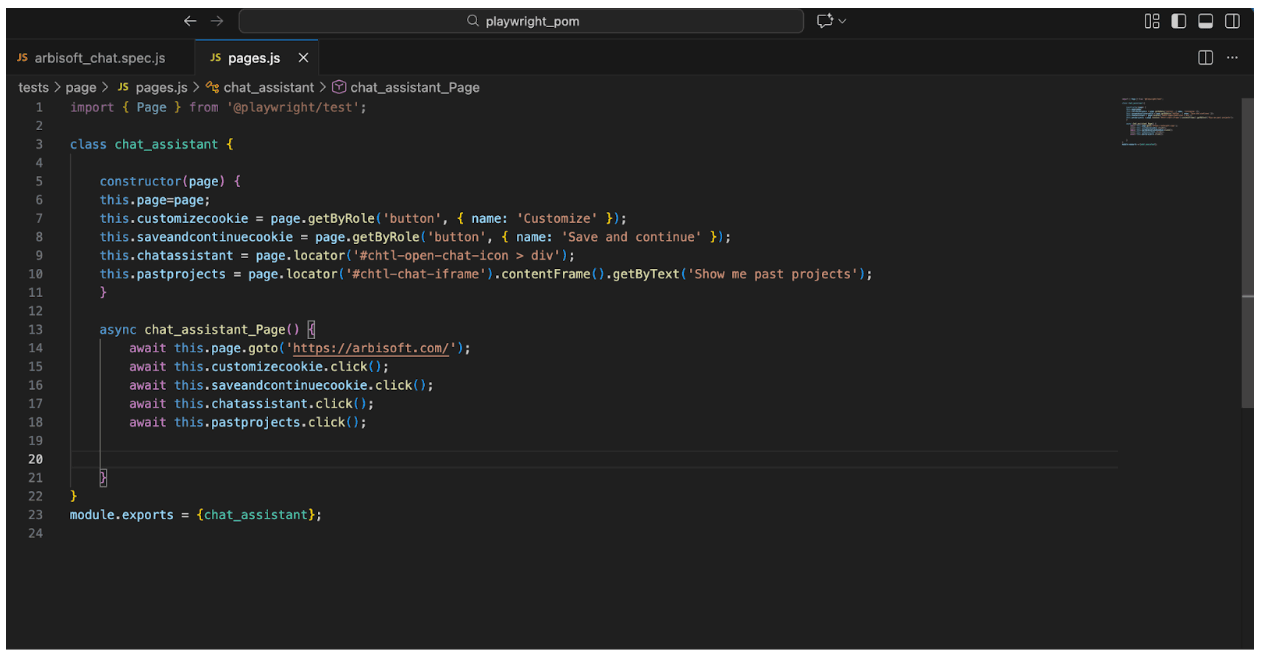
I am creating a class for the chat_assistant. I have created variables for my steps.
As we need the chat_assistant object, I am creating a constructor and is passing chat_assistant into it. The constructor has:
I have defined all locators using this.
I have created a method chat_assistant_Page to perform actions on these locators. You can create separate functions for them as well.
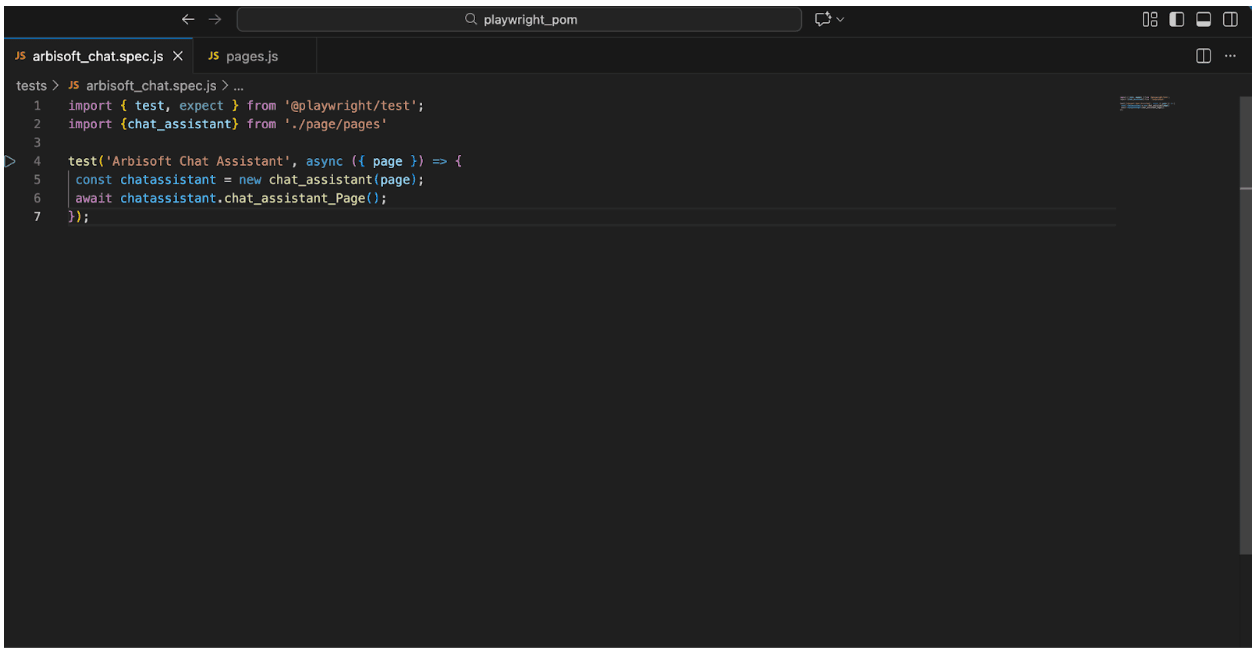
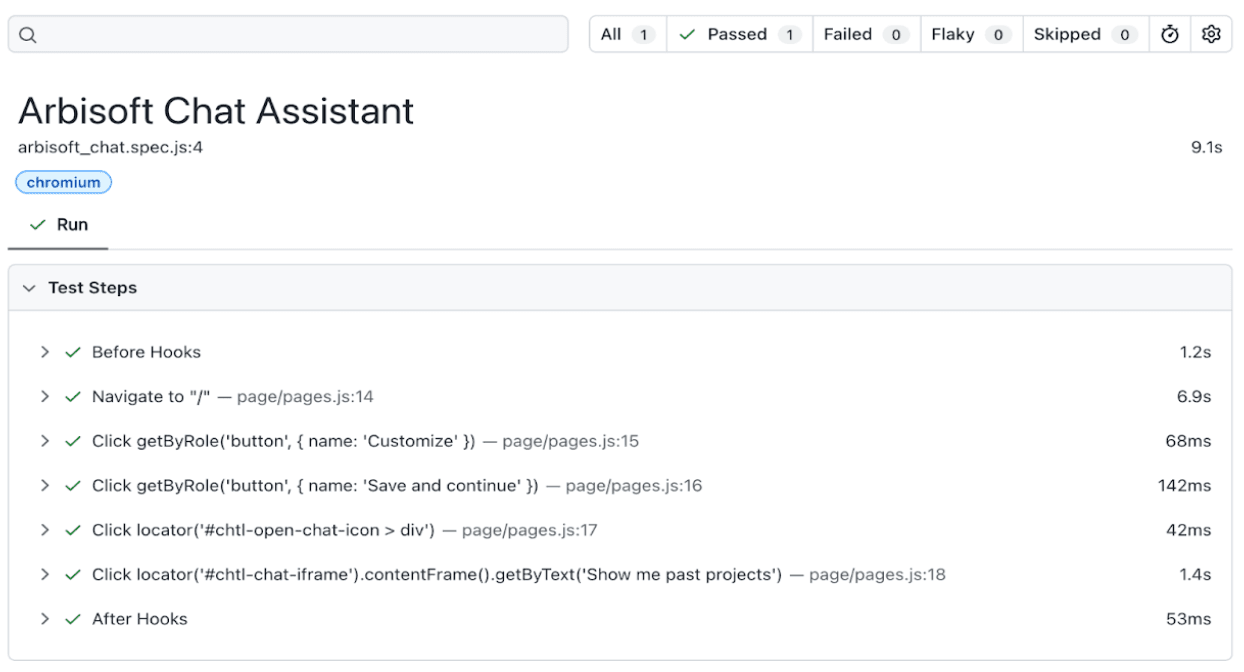
Now, I am importing the page class chat_assistant in my test file. I have used chat_assistant and chat_assistant_Page inside my test. Run the test again using the command below.
npx playwright test tests/arbisoft_chat.spec.js --project=chromium --headed
The Page Object Model (POM) is very simple and the best way to build automation tests that are easily scalable and maintainable. By splitting the original code into test code and page code, our tests become simpler, and they become easy to read and update. POM helps us to reduce duplication and scale test automation with confidence.
The codegen feature of Playwright works very well with POM. In short, introducing POM with Playwright is the best way to build well-structured end-to-end (e2e) test automation frameworks.
Playwright is one of the most powerful and modern automation frameworks available today, and when combined with the Page Object Model, it becomes a clean, scalable, and maintainable testing solution.
If your goal is to build a professional-grade test automation framework, Playwright + POM is a combination you can trust. Start simple, follow best practices, and refactor as your test suite grows.
Trusted by top platforms for our transformative solutions and exceptional results: