

 Add as preferred on Google
Open-Source LMS: Top platforms for 2026Read More

Colors are one of the most powerful tools in a developer’s UI toolkit used for indicating success, warnings, required fields, status changes, and more. But what happens when the user can’t perceive those colors correctly?
Around 300 million+ people globally live with some form of color vision deficiency, commonly known as colorblindness. If you're developing interfaces that use color without alternatives, you're likely creating barriers for these users.
This blog will walk you through real-world examples, code snippets, and developer-friendly practices to make your front ends colorblind-accessible, aligning with standards like WCAG 2.2, ADA, and the European Accessibility Act.
Colorblindness doesn’t mean users can’t see color at all. Most colorblind individuals can perceive a range of colors, but some shades may appear alike to them.
Type | Description |
Deuteranopia | Red-green confusion (green-weak) |
Protanopia | Red-green confusion (red-weak) |
Tritanopia | Blue-yellow confusion |
Monochromacy | No color perception |
As a developer, if you’re highlighting a required field in red, that user might never realize it’s required.
You build a form and mark errors by simply changing the border to red.
<!-- BAD: Color is the only indicator -->
<input type="text" style="border: 2px solid red;">
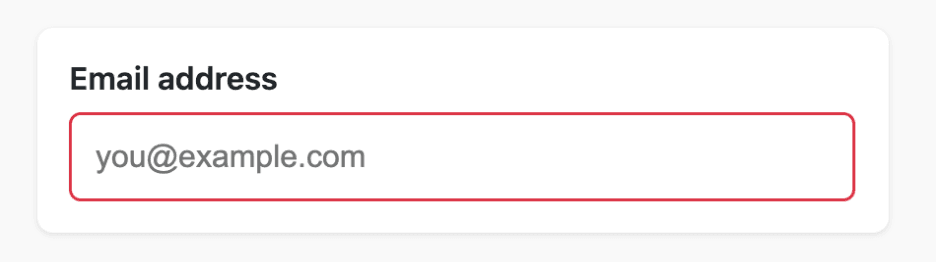
A person with colorblindness may not perceive this red as distinct.
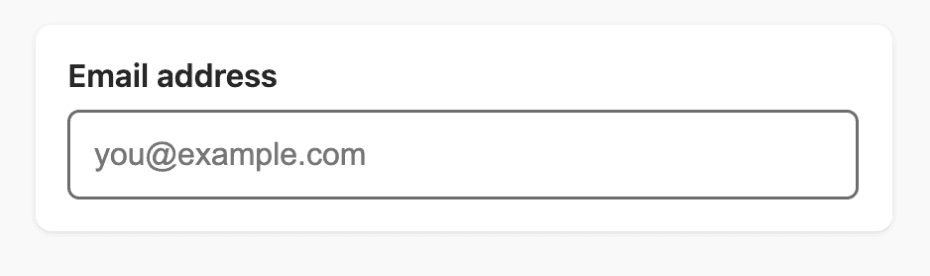
<div>
 <label for="email">Email</label>
 <input id="email" type="text" aria-describedby="error-email" style="border: 2px solid red;">
 <span id="error-email" style="color: red;">
   ❌ Please enter a valid email address.
 </span>
</div>
Now you’ve added:
Now, even a colorblind person can easily perceive the error.
Consider this example in a dashboard:
<span class="status-indicator" style="color: green;">🟢</span>
<span class="status-indicator" style="color: red;">🔴</span>
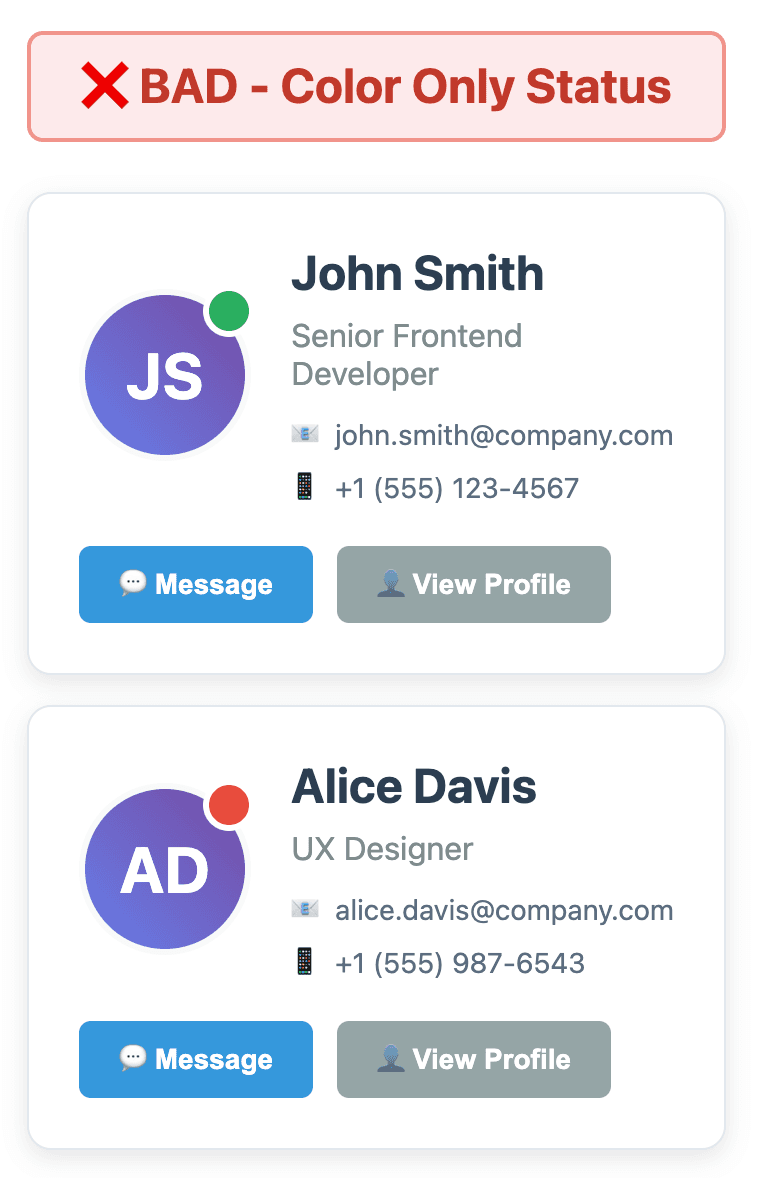
Colorblind users may see both dots as similar.
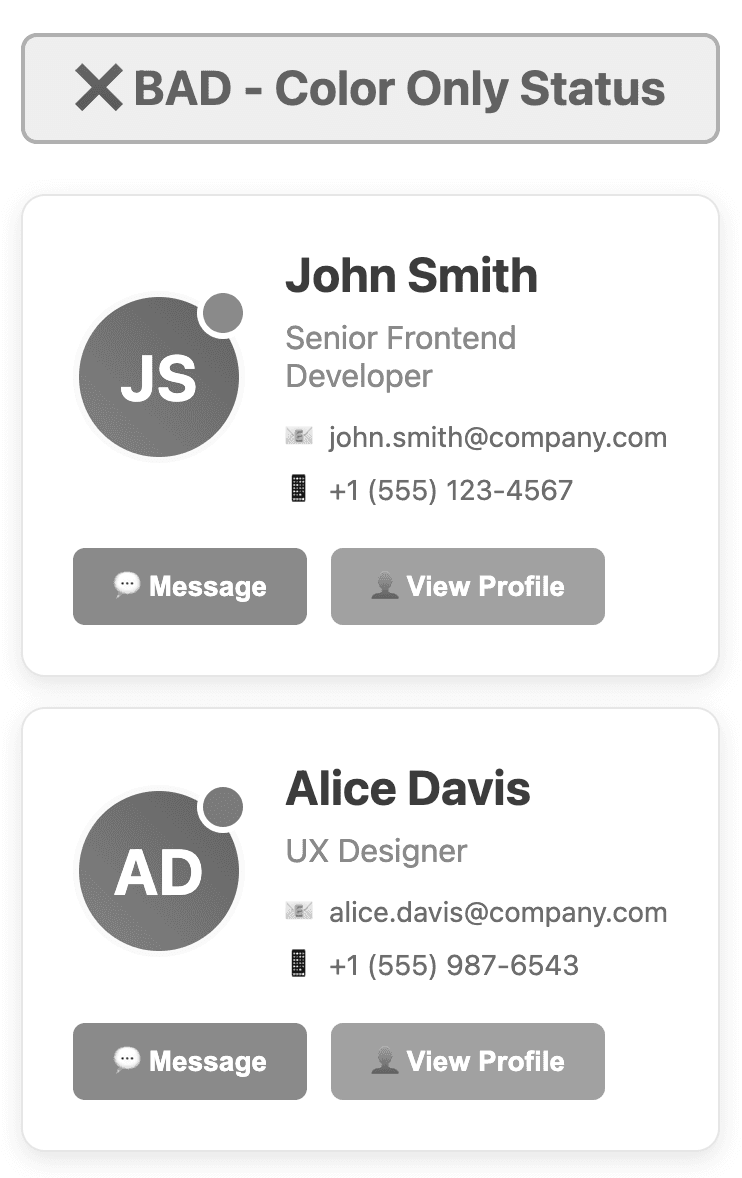
<span aria-label="Status: Active" role="status">🟢 Online</span>
<span aria-label="Status: Offline" role="status">🔴 Offline</span>
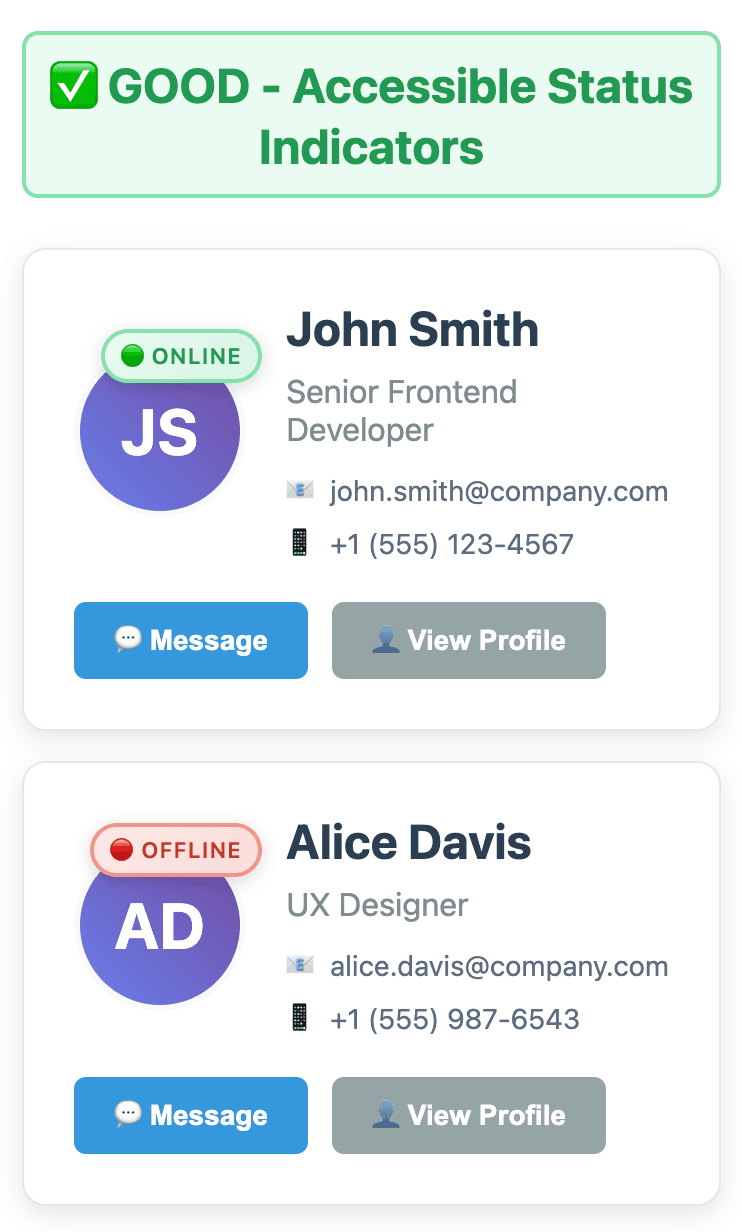
Colorblind users will see the following view:
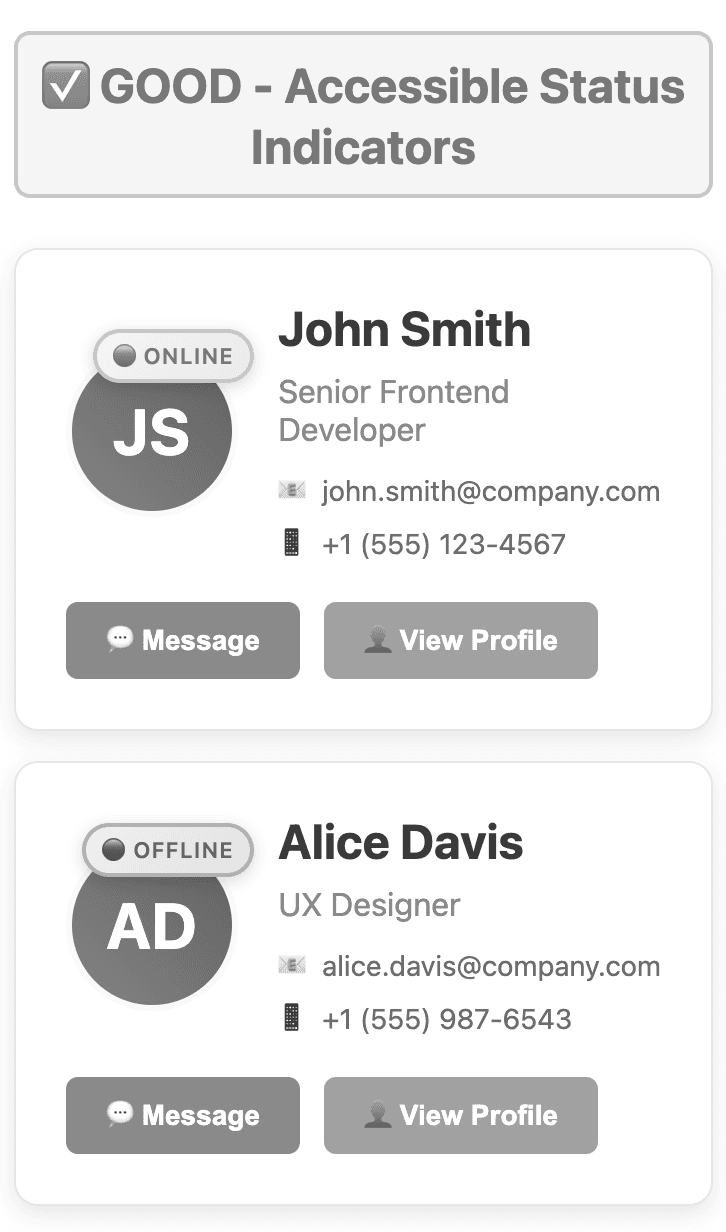
Or use different shapes entirely:
🟢 Active | ⛔ Offline
Charts and graphs are common in apps, but they’re often unusable for colorblind users.
// Chart Example - Bad
datasets: [{
 label: '[Development, Sales, Marketing]',
 data: [20%, 30%, 50%],
 backgroundColor: [blue, 'red', 'green']
}]
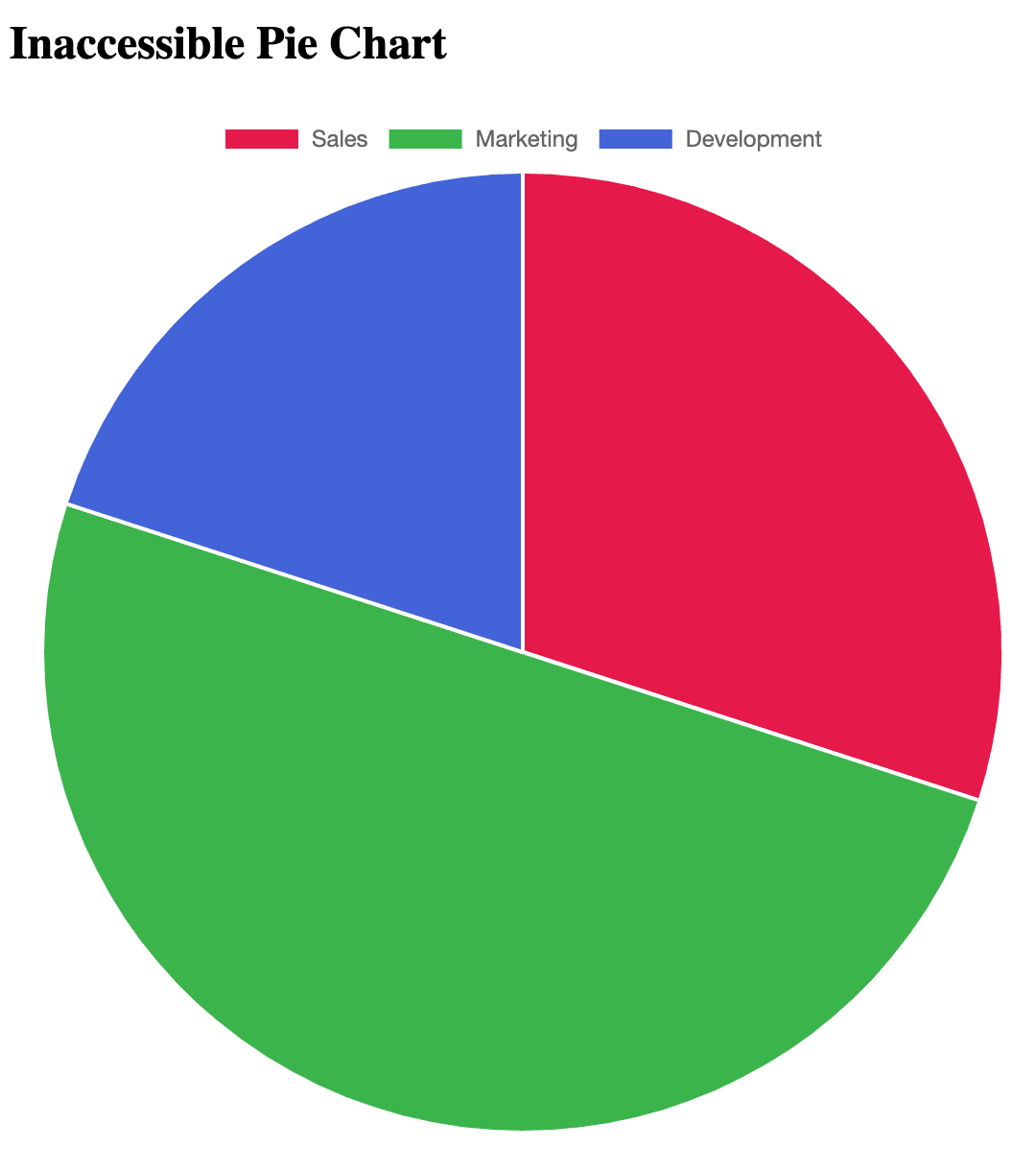
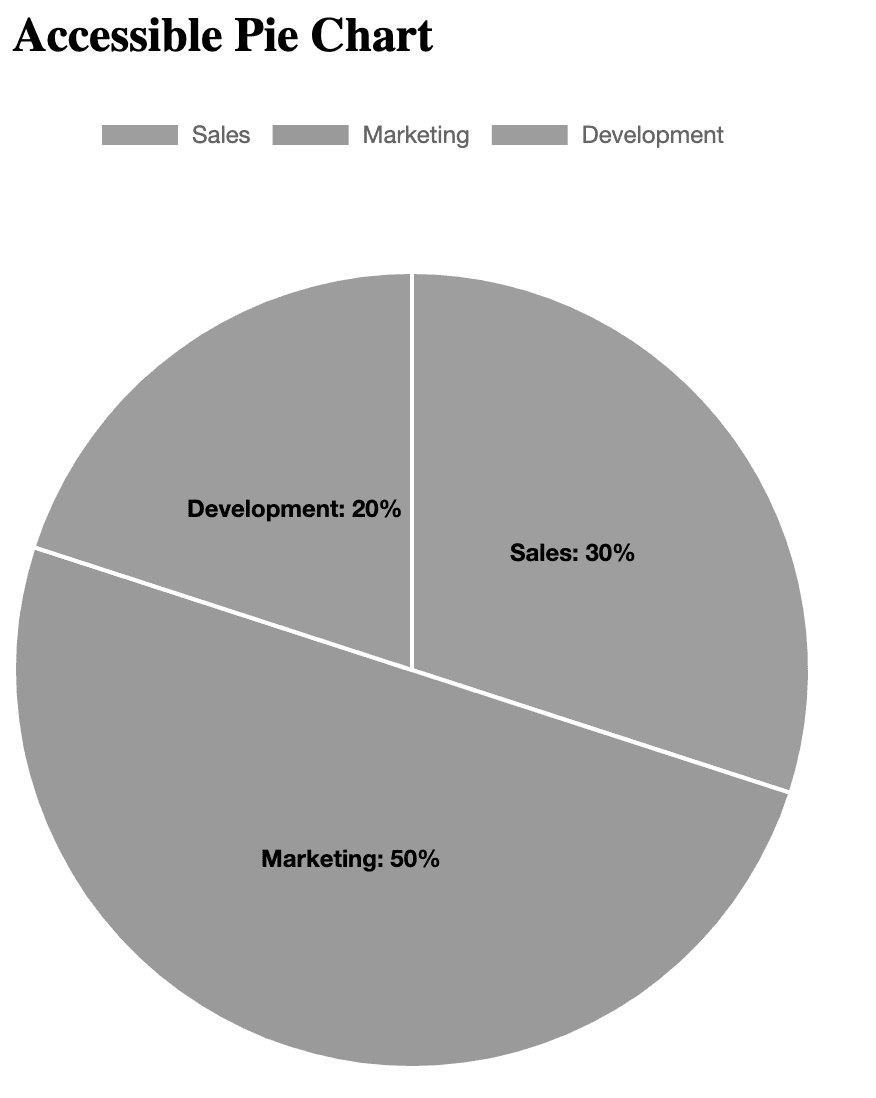
Red and green will blur for many. A colorblind person will see the following view:
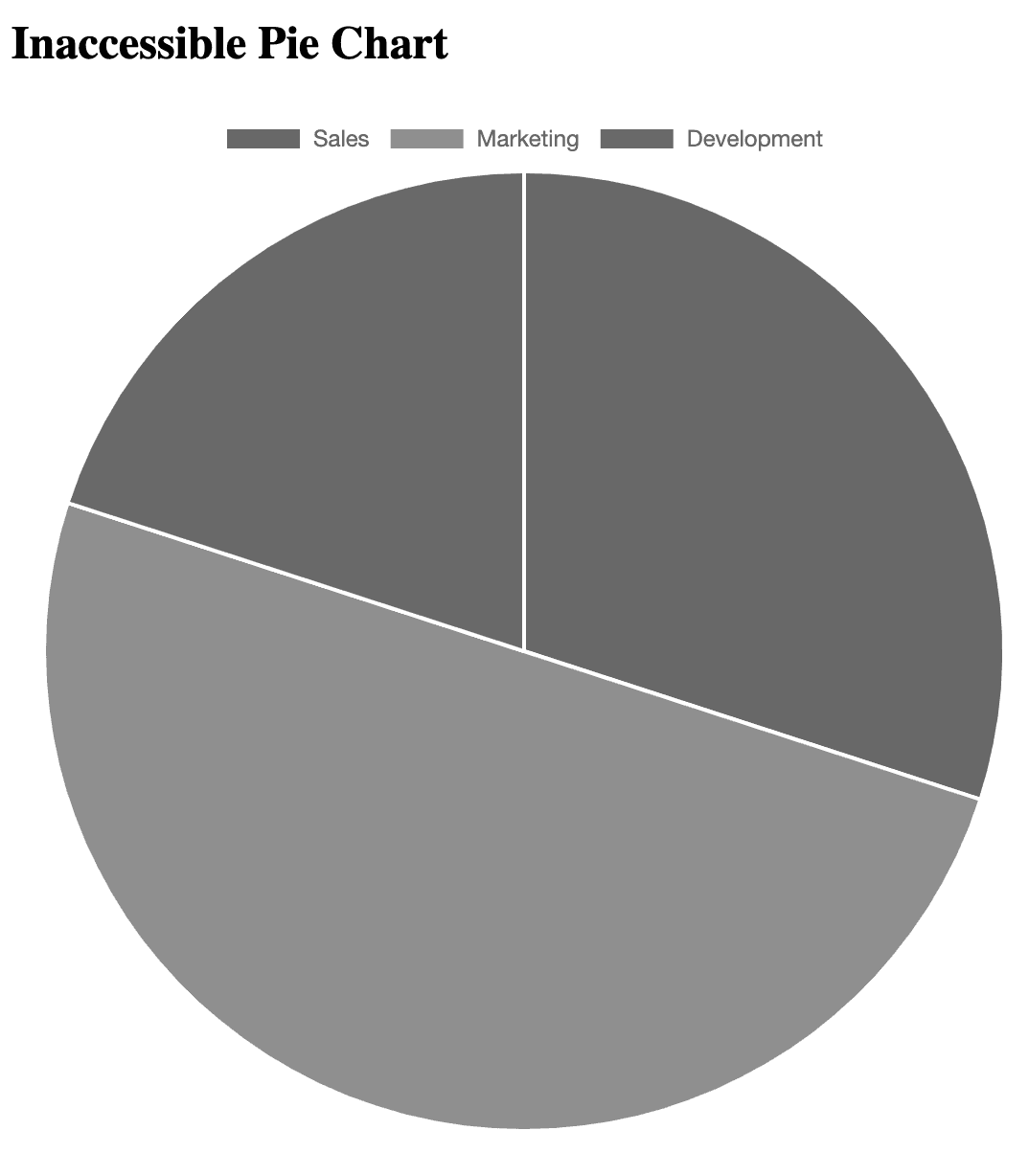
datasets: [{
 label: ‘Development, Sales, Marketing',
 data: [20%, 30%, 50%],
 backgroundColor: ['#0072B2', '#D55E00', '#009E73'],
}]
Also:
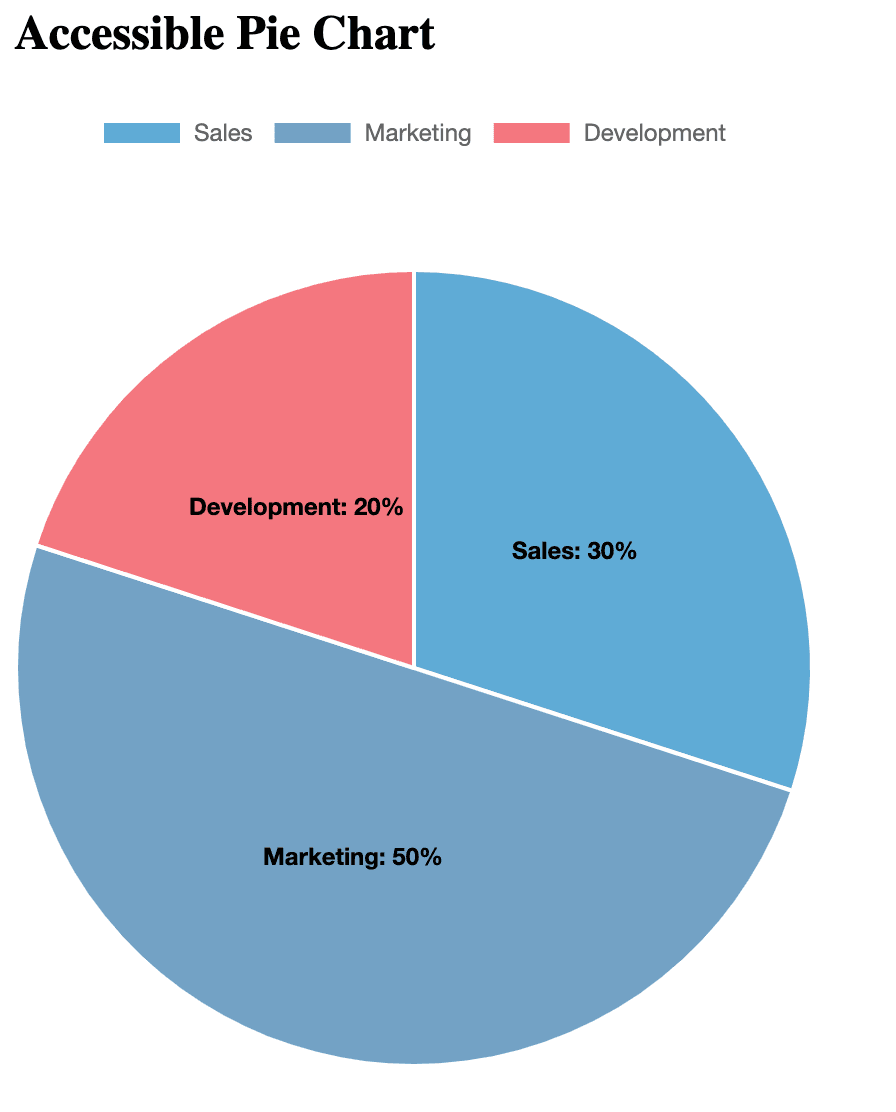
Colorblind people will see the following view:
Tool | Purpose |
WebAIM Contrast Checker | Checks color contrast ratios |
Colorblindly Chrome Extension | Simulates various types of colorblindness |
Figma “Color Blind” Plugin | Simulates CVD while designing |
Accessible Color Matrix | Builds colorblind-safe palettes |
Run your UI through at least one of these before release.
By making your apps color-accessible, you're aligning with:
Standard | Requirement |
WCAG 2.2 – SC 1.4.1 | Color cannot be the sole indicator |
WCAG 2.2 – SC 1.4.3 | Text must have sufficient contrast |
ADA & Section 508 | Legal mandates for accessible UIs |
European Accessibility Act | Applies to public-facing products in the EU |
Accessibility isn't just a moral obligation; it's mandatory in many jurisdictions.
Developing for colorblind users doesn’t require reinventing your UI. It takes attention to detail, intentional coding practices, and a commitment to inclusion.
Start small:
Every time you make your UI more inclusive, you make your product better for everyone. If you require any assistance with accessibility, you’re welcome to contact Arbisoft’s Accessibility Team.
...Loading Related Blogs
Trusted by top platforms for our transformative solutions and exceptional results: