

 Add as preferred on Google
Odoo Customization Guide for Smarter ERP DecisionsRead More
In this blog, we are going to learn how to perform API testing with Playwright. Before starting, let’s refresh our knowledge about API testing. API stands for Application Programming Interface, and in API testing, we check whether an API is working correctly or not. In API testing, we test requests and responses, or, in simple words, we send data and receive responses. We usually test HTTP status codes of an API. We also check headers, response body, and response time.
Let’s start by setting up a project for API testing in an IDE. I will then show you how to write a GET API request and a POST API request. As I will be using Arbisoft’s live website for testing, I will skip how to perform PUT and DELETE API requests, but I will share their basic templates so you can later edit them for your staging environments and projects.
I will validate the API responses by using assertions. I will use the Playwright UI mode to check the console, logs, responses, errors, etc.
This step is optional if you already have an existing Playwright project. Let’s start by creating a new project for API testing.
First of all, create a new folder on your Mac/PC at any location and rename it, for example, playwright_API_testing.
Open your IDE, for example, VS Code.
Drag and drop the folder into VS Code.
Open the terminal or command line at the folder location and run the following command to install Playwright from scratch:
npm init playwright@latestHit Enter. This will start the setup process, and it will ask you:
After installation, you will see:
A package.json file created in the project folder
A package-lock.json file created along with the node_modules folder
In the terminal, run:
npx playwright test --uiThis will open the Playwright UI, where you will see all your tests in one place. You can run tests interactively. You will get all the details here and see screenshots of each step. You will also see the output from the tests.
We are going to create a new file for the GET API test. Go to the tests folder in your project directory. Right-click and create a new file, for example:
GET_API_Test.spec.js
You can give it any name you want.
As of now, the file is empty. The first step is to import the test and expect packages from the Playwright test library. Add the following line to your file:
import { test, expect } from '@playwright/test';Now, create a simple test with a proper title to show a GET request. Below is an example of the test structure. The body of our test contains what we will use to run our API GET request and perform all validations.
test('API get request', async ({ request }) => {
});
We will use an API URL and the GET method to run the API. We will also store the response in a variable. For this, we need some demo APIs. You can use any testing API, but I am going to use APIs from arbisoft.hirestream.io. I will pick a GET API from the browser’s Network tab.
Let’s take this example:
https://arbisoft.hirestream.io/api/v1/core/config/?timezone=Asia%2FKarachiBelow is the complete test example:
import { test, expect } from '@playwright/test';

test('GET API request', async ({ request }) => {
  const response = await request.get(
    'https://arbisoft.hirestream.io/api/v1/core/config/?timezone=Asia%2FKarachi'
  );

  expect(response.status()).toBe(200);

  const text = await response.text();
  expect(text).toContain(
    'Arbisoft is one of the fastest growing software services companies in Pakistan.'
  );

  console.log(await response.json());
});
In the above test, we used await request.get, a method that sends a GET API request and waits for the server response. We store the output in a variable called response.
Now, run the GET test file using Playwright UI mode, for example:
npx playwright test tests/GET_API_Test.spec.js --uiAfter completion, check whether everything is working fine. The screenshots below show the step-by-step execution.
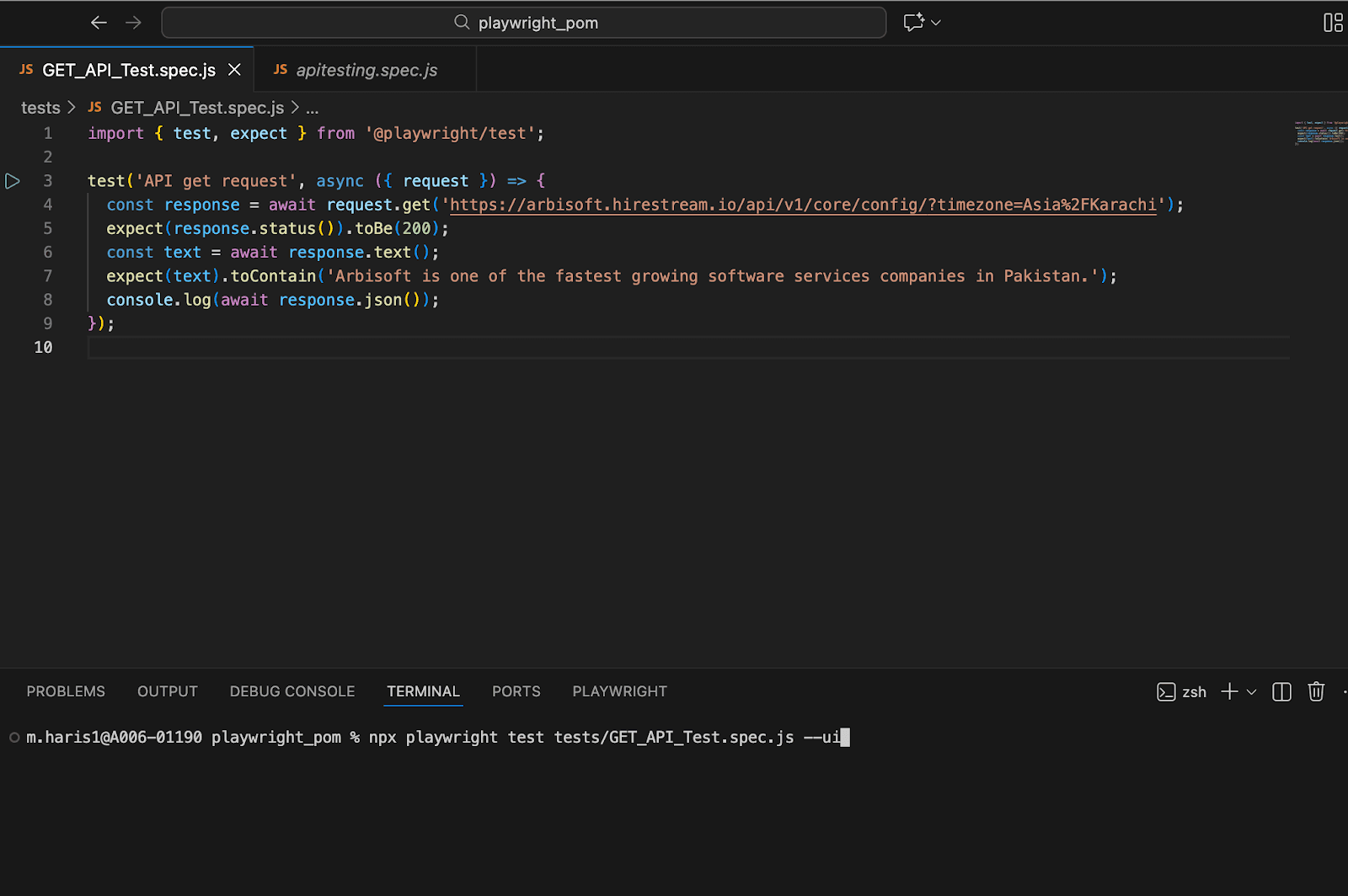
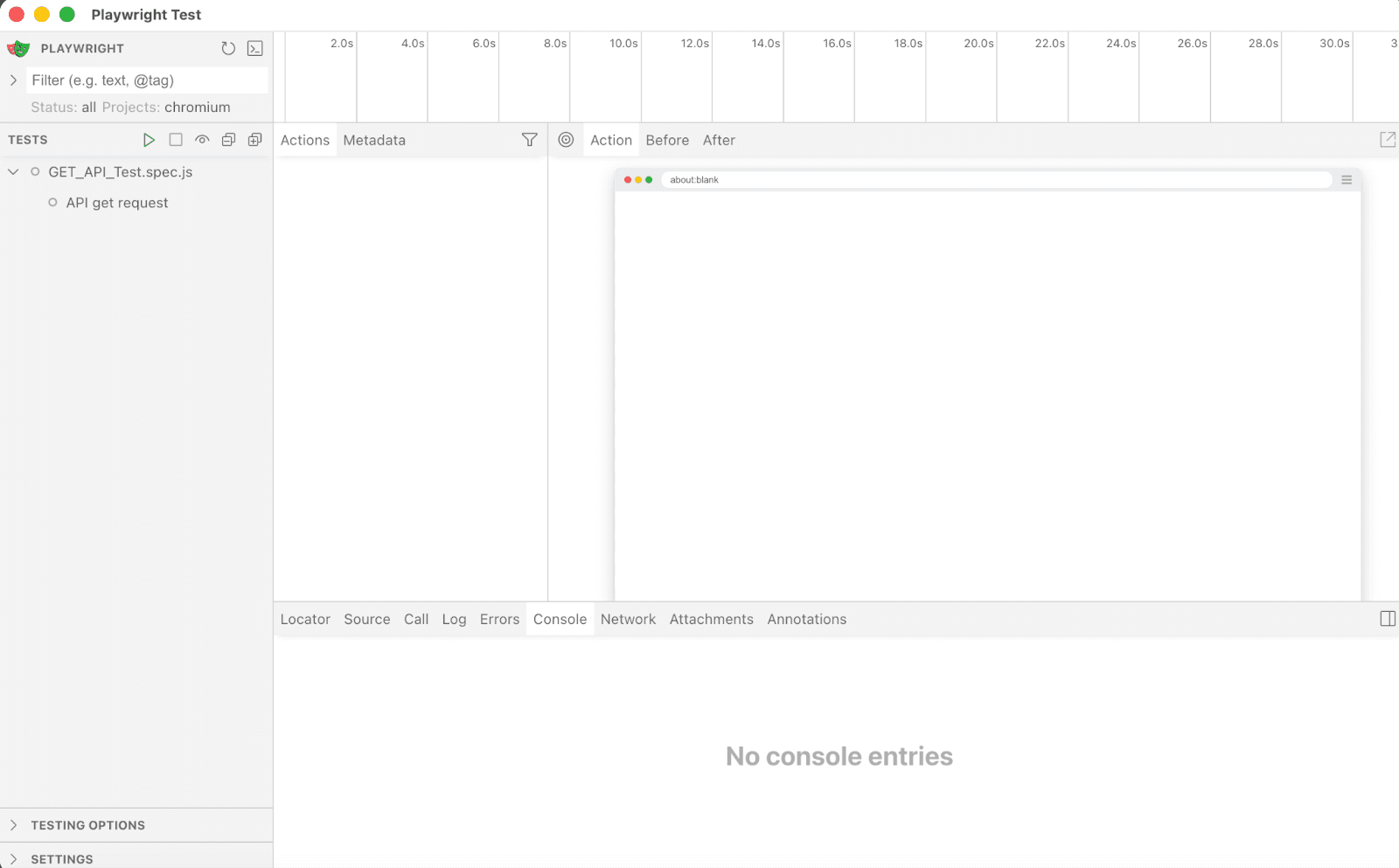
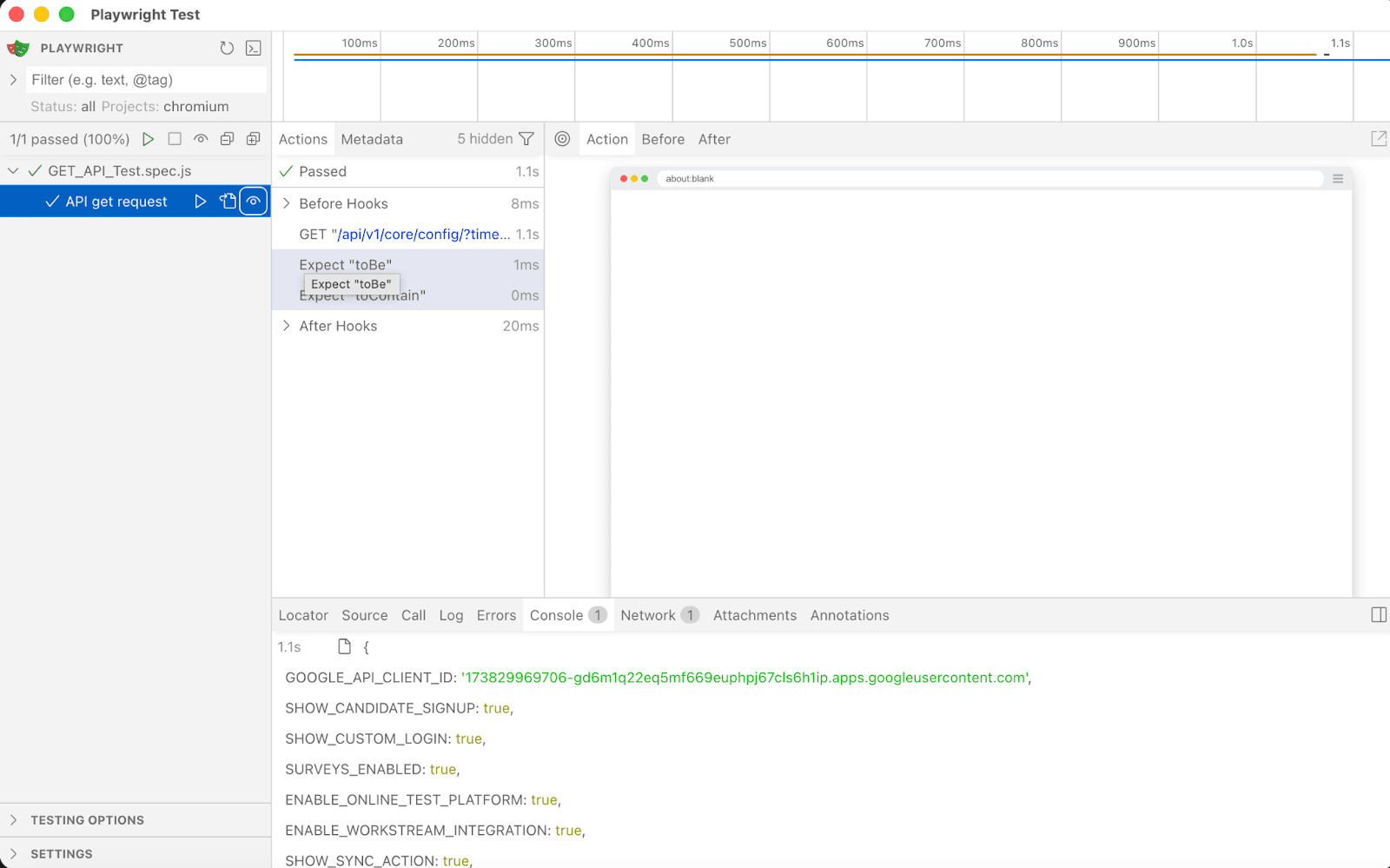
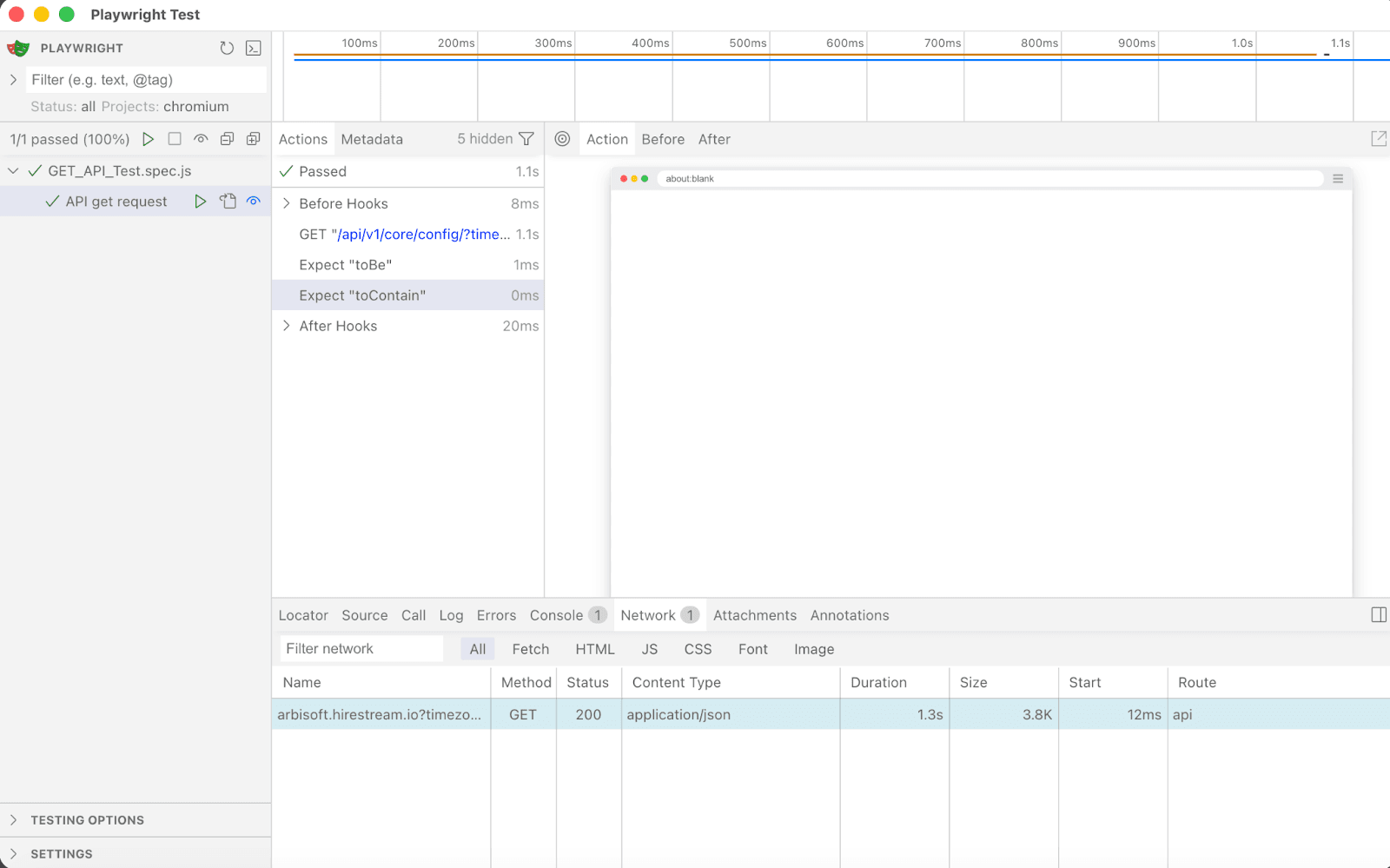
In the above screenshots, you can see the Network tab and Console tab of the Playwright UI. They show all the details, including the status code. We used the expect assertion in our code to check whether the response contains a particular text. We also used console.log to see the response in the console using JSON.
Let’s test a POST API request now. In a POST request, we also have a request body, or payload.
The first step is the same: we will create a new file and add the imports. I am going to use arbisoft.hirestream.io again. I will pick a POST API from the Network tab.
Let’s take this as an example:
https://chatling.ai/public/embed/chatbot/v2/chatYou will need to copy the cURL of the POST API request from the Network tab. This will contain all the information mentioned in the headers of the request. You will use this cURL for testing the POST API.
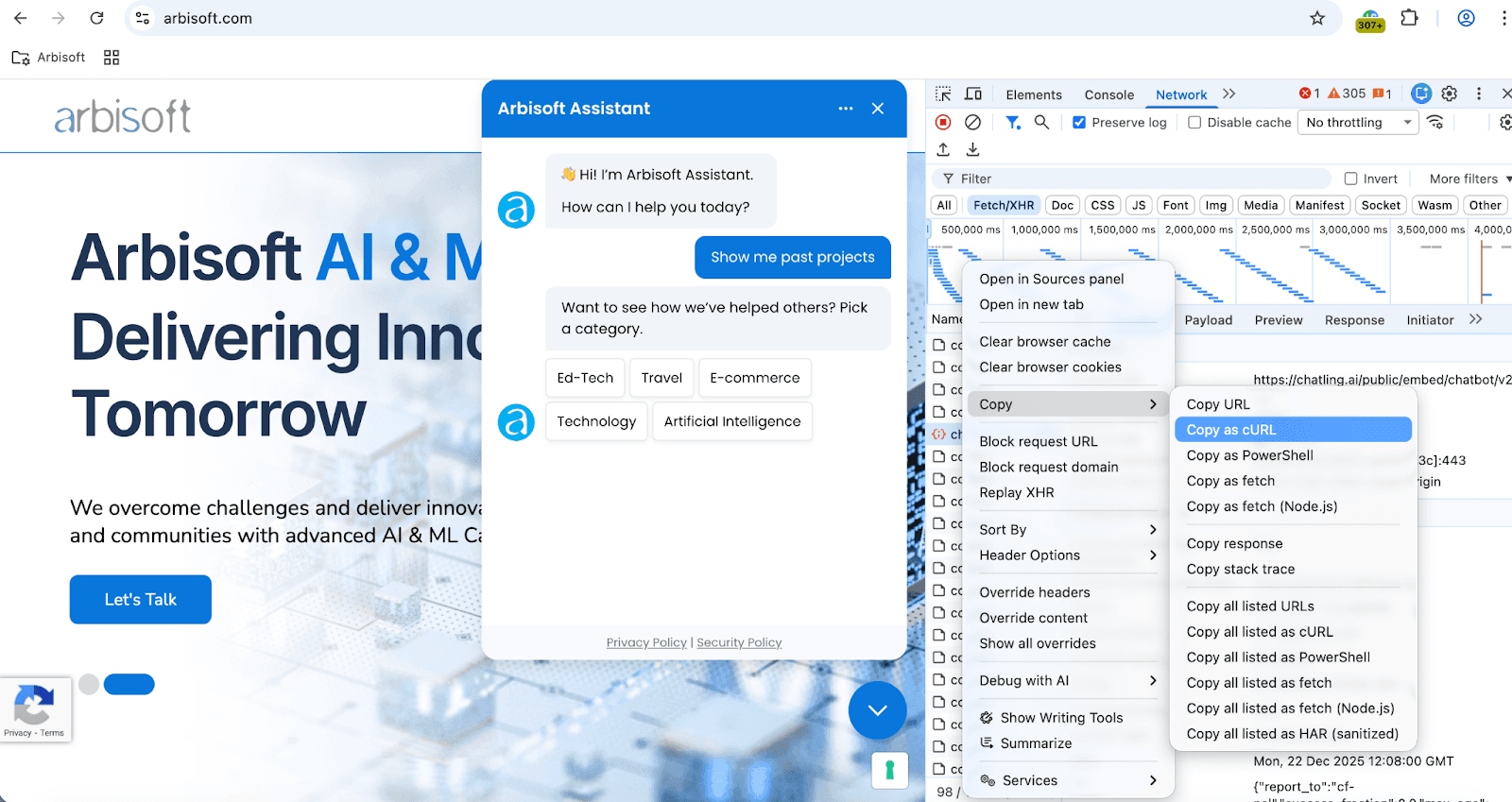
Some POST APIs require a x-csrf token, so the cURL will include it. The testing API that I am using does not have a x-csrf token, so I left it empty in my code. I have also removed the cookie because it is related to my browser session, and left that field empty in the code.
import { test, expect } from '@playwright/test';

test('POST API request', async ({ request }) => {
  const response = await request.post(
    'https://chatling.ai/public/embed/chatbot/v2/chat',
    {
      headers: {
        'accept': 'application/json, text/plain, */*',
        'accept-language': 'en-US,en;q=0.9',
        'content-type': 'application/json',
        'origin': 'https://embed.chatling.ai',
        'priority': 'u=1, i',
        'referer': 'https://embed.chatling.ai/',
        'sec-ch-ua': '"Google Chrome";v="143", "Chromium";v="143", "Not A(Brand";v="24"',
        'sec-ch-ua-mobile': '?0',
        'sec-ch-ua-platform': '"macOS"',
        'sec-fetch-dest': 'empty',
        'sec-fetch-mode': 'cors',
        'sec-fetch-site': 'same-site',
        'user-agent':
          'Mozilla/5.0 (Macintosh; Intel Mac OS X 10_15_7) AppleWebKit/537.36 (KHTML, like Gecko) Chrome/143.0.0.0 Safari/537.36',

        // CSRF and Cookie from your cURL (ensure to update these values)
        'x-csrf': '', // Add CSRF token here if necessary
        'Cookie': '',
      },
      data: {
        egid: "7981414364",
        cmgid: "e829d756-b463-4f1a-80a2-757736ba82e9",
        cgid: "fa601db7-baaf-4c84-9813-6603b368aa10",
        data: {
          message: "Show me past projects",
          item_id: "144150a2-178b-3d83-683f-bc00603ce742",
        },
        cuid: "bef49464-f996-4075-9b19-f348f533499c",
        type: "input",
      },
    }
  );

  console.log('Status:', response.status());
  const body = await response.text();
  console.log('Body:', body);

  // Adjust assertions once you know the exact success shape
  expect(response.status()).toBe(200);
});
Run the file using the terminal:
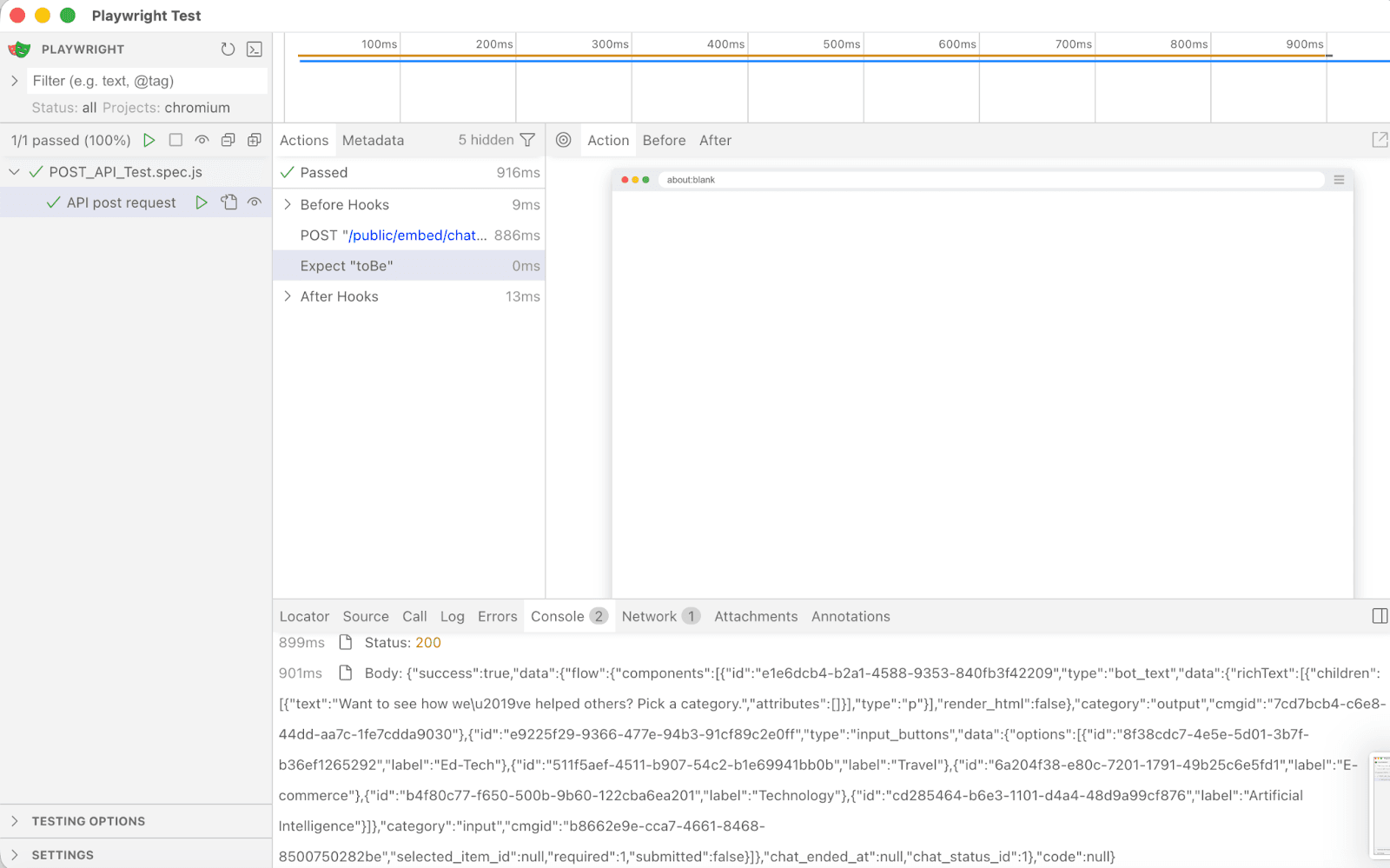
npx playwright test tests/GET_API_Test.spec.js --uiAfter completion, you will see that the status code for the successful POST request is 200. See the screenshots below for better understanding.
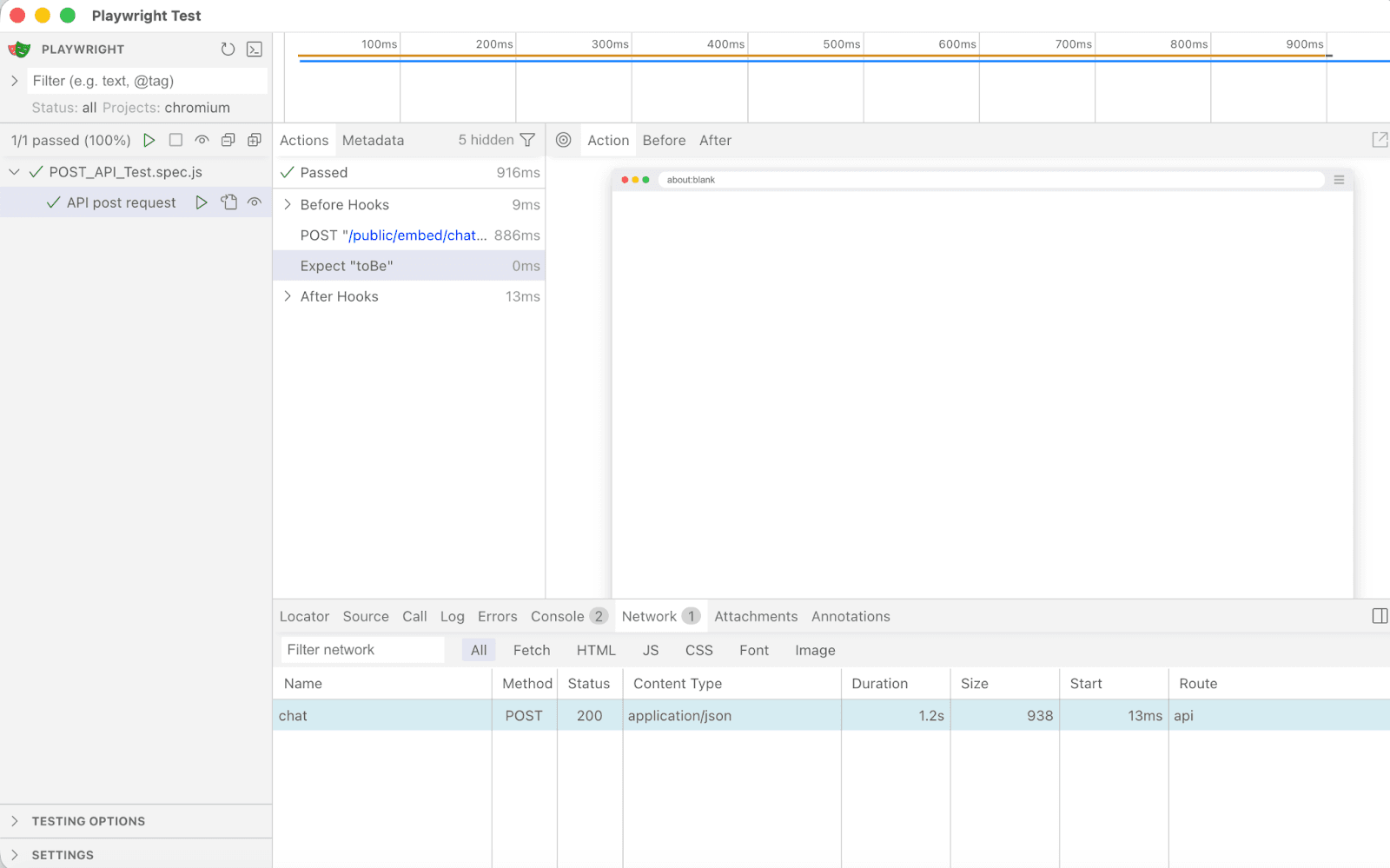
We use a PUT request to update an existing resource in the database. Below is a basic template for PUT API testing of an XYZ website.
test('PUT API request', async ({ request }) => {
  const response = await request.put('XYZ', {
    data: {
      name: 'name',
      job: 'SQA Engineer',
    },
  });

  expect(response.status()).toBe(200);
  console.log(await response.json());
});
We use a DELETE request to delete a resource from the database. Below is a basic template for DELETE API testing of an XYZ website.
test('DELETE API request', async ({ request }) => {
  const response = await request.delete('XYZ');
  expect(response.status()).toBe(204);
});
Along with UI tests, we can also add API tests to our Playwright automation projects to validate both UI and API functionality. By adding API tests to our test automation frameworks, QA teams can increase test coverage and catch issues related to backend services earlier. This helps improve overall software quality.
In short, Playwright makes API testing easy, efficient, and maintainable as part of an end-to-end (E2E) testing strategy.


Trusted by top platforms for our transformative solutions and exceptional results: