
 Add as preferred on Google

PHP2Shell and the End of Unmanaged Open Source in Higher EducationRead More

Mobile app security best practices are the controls that protect an iOS or Android app's data, user sessions and backend from attack. The ones carrying the most weight are server-side authorization, hardware-backed storage for secrets, standard sign-in flows, strict network settings, and a test for every control before release.
Most of that list will look familiar, and the familiarity is part of the problem. These controls usually appear as a flat list, with certificate pinning sitting politely next to server-side authorization as though the two were roughly equivalent. They are nowhere near equivalent. A control's strength depends on where its decision gets made, a detail checklists have a habit of skipping.
A check on the server holds even when the person holding the phone is the attacker. A key the operating system keeps in secure hardware stays out of reach of other apps. A check written into the app's own code belongs to whoever controls the device, which is an uncomfortable thought once it sinks in how many security decisions quietly live there.
So this guide sorts every control by where its decision lives. The server and the platform's protected APIs are the real boundaries. Attestation services hand the server evidence about the device (useful evidence, though evidence all the same). Checks inside the app add friction, which slows attackers down and, now and then, lulls the people who wrote them into feeling safer than they are. And every control, every single one, needs a test proving it works before anyone calls it done.
The most dangerous mobile vulnerabilities tend to start life as perfectly reasonable decisions: a token cached somewhere convenient the afternoon before a release, a debug flag nobody got around to removing, a biometric prompt that felt secure because it had a fingerprint icon on it. Much of what follows is about spotting those decisions while they are still cheap to change.
One example runs through the whole guide: a payments app with sign-in, an account balance, transfers between users and downloadable statements. A news app turns up now and then as the low-risk contrast. The guide is written for mobile engineers, architects and the engineering leaders who set security requirements, and it covers the app plus the API boundary the app depends on. Device management, penetration-testing technique and the legal detail of privacy law sit outside its scope.
A mobile app faces two kinds of attacker. Outsiders, such as a thief with a lost phone, a malicious app on the same device or a hostile Wi-Fi network, are stopped by iOS and Android platform protections when the app uses them correctly. Someone who controls the device can change anything inside the app, so against that attacker only the server is a real boundary.
Most of what users worry about comes from people who never control the phone at all: a phone left unlocked in a taxi, another installed app rummaging through shared storage, a café network listening in.
iOS and Android are genuinely good at stopping these people, which is easy to forget amid all the vendor whitepapers. Each app runs in a sandbox other apps can't read. The iOS Keychain and the Android Keystore hold secrets and keys in storage the operating system protects, backed by dedicated security hardware on many devices. App Transport Security (ATS) on iOS and Network Security Configuration (NSC) on Android refuse insecure connections by default. Most of the work here comes down to using what the platform already provides and resisting the urge to switch it off when it gets in the way during development. That urge is strong. The switches, as a rule, stay off.
The second attacker is less comfortable to think about. This person controls the phone, has rooted or jailbroken it, or has pulled the app package onto a laptop to take apart at leisure. The goals change accordingly: skip a paywall, extract API keys, study how the fraud checks work, replay a transfer with a slightly more ambitious amount.
To this attacker, the app's code is modelling clay. Decompilers, debuggers and runtime hooking tools such as Frida can make any if statement return whatever the attacker prefers. Obfuscation and root detection slow the work down, sometimes considerably, and nothing on the device can prevent it. Which raises an awkward question for any team: how many of the app's security decisions are sitting in code this person can edit? Usually more than anyone would guess before looking.
| Enforced by | Holds against outsiders | Holds against the device owner | Examples |
| Your server | Yes | Yes | Authorization, rate limiting, session revocation |
| The platform (OS and secure hardware) | Yes | Partly. Keys can't be extracted, but a compromised device can use them while unlocked | Keychain, Keystore, app sandbox, ATS, NSC |
| A server-verified signal | Yes | Partly. Gives the server evidence about the app and device to weigh | App Attest, Play Integrity |
| The app's own code | Mostly | No | Client-side validation, root detection, obfuscation |
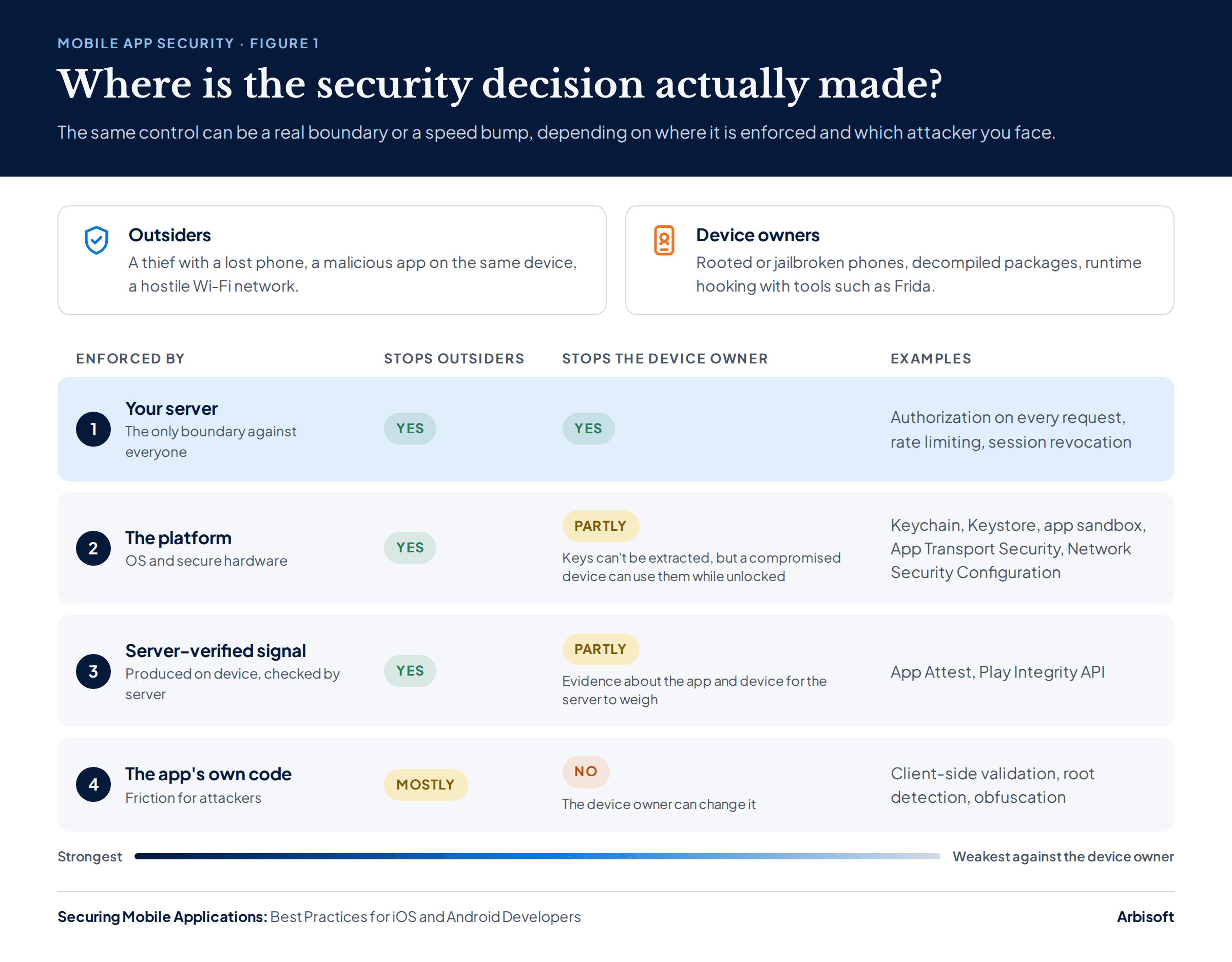
A server-verified signal is evidence produced on the device, such as an App Attest assertion or a Play Integrity verdict, that the server checks with Apple or Google before deciding what to allow. Every practice in this guide carries one of these four labels, along with a risk tier and a test.
Not every mobile app needs every security control. Classify the data the app handles and what an attacker could do with a stolen account, then assign a risk tier. Baseline controls apply to every app. Hardening such as certificate pinning and root detection earns its cost only in the higher tiers.
Security budgets are finite, and so is engineering patience, so the starting point is an honest inventory: what the app stores, what it sends, and what a signed-in user is able to do. Every later decision hangs on that inventory, from the Keychain setting for a token to whether pinning is worth the operational risk.
| Tier | Typical apps | What defines it | What it adds |
| Baseline | Content, news, utilities with little personal data | A stolen account is an annoyance | Server-side authorization, platform storage, standard sign-in, strict network defaults, release hygiene, accurate privacy declarations |
| Sensitive | Apps with personal or health data; business and internal apps with company data | A breach exposes regulated or confidential data | Stricter storage settings, biometric-bound keys for sensitive actions, shorter sessions, attestation as a risk signal |
| High-risk | Payments, banking, trading, anything with a fraud incentive | An attacker can profit directly | Certificate pinning with a rotation plan, attestation enforced by the server, tamper and root detection with a planned response, step-up authentication |
These tiers are Arbisoft's recommendation, drawn from the threat model above. They aren't an industry standard, and the borders blur in practice. A fitness app that starts storing heart-rate history drifts toward Sensitive faster than its roadmap tends to admit.
The example payments app is high-risk because it moves money between users. The news app sits at baseline, and adding pinning and jailbreak detection there would look diligent in a security review while adding operational risk and protecting nothing an attacker wants.
Server-side authorization is the one mobile security control that holds against every attacker. Anyone can modify an app running on their own device, so a check made only in the app can be skipped. The server has to verify every request independently: who the user is, whether they may touch that specific record, and whether the action is allowed.
The example payments app checks that the balance covers a transfer before sending it, and that check is genuinely useful because it spares the user a network round trip. As security, it's worth roughly nothing. An attacker can patch the check out, or skip the app entirely and call the API with a different amount, so the server has to look up the real balance and refuse the transfer itself.
The more common failure is quieter and, in some ways, more embarrassing. The app asks for /statements/48213, and the server returns it because the token is valid, without ever checking that statement 48213 belongs to that token's user. Change the number and someone else's statement arrives. This flaw has a name, broken object level authorization (BOLA), and OWASP's API Security Top 10 ranks it first. Mobile teams miss it for an oddly human reason: the app's interface only ever shows users their own IDs, so nobody on the team ever sees a request for anyone else's. Attackers, of course, never bother with the interface.
A related trap sits inside the standards themselves. The OWASP Mobile Application Security Verification Standard (MASVS) covers the app, and OWASP's MASVS assessment guidance states plainly that backend endpoints need verifying against a different standard, such as its Application Security Verification Standard (ASVS). An app can pass MASVS with flying colours while sitting on a server nobody has checked.
Enforced by: Server · Tier: Baseline Test: Replay a captured request with another user's record ID, then with a modified amount. The server must reject both.
Secure mobile authentication rests on four practices. Sign users in through the system browser using OAuth 2.0 with PKCE, or with passkeys. Keep access tokens short-lived and revoke sessions on the server at logout. And if the app uses biometrics, bind them to a key held in the iOS Keychain or Android Keystore, because a biometric prompt that only reports success or failure can be bypassed.
PKCE (Proof Key for Code Exchange) binds an OAuth authorization code to the app instance that requested it, so an intercepted code is useless to anyone else. Mobile apps that sign users in through an identity provider should use the authorization code flow with PKCE, run in the system browser: ASWebAuthenticationSession on iOS, Custom Tabs on Android.
RFC 9700, the IETF's current OAuth security best practice, requires PKCE for public clients. A public client is any app that can't keep a secret, which describes every mobile app ever shipped, however cleverly its API key was tucked away. RFC 8252 recommends the system browser for native apps, and the reason is worth sitting with for a moment: an embedded WebView gives the app the ability to read what the user types into the identity provider's login page, which is precisely the access an identity provider exists to keep away from third-party code. The system browser also brings the user's existing session and saved passwords along, a small usability win that happens to be a security win too.
Passkeys are one of the rare security improvements that also make signing in easier, which is unusual enough to deserve a mention. A passkey replaces the password with a key pair whose private key stays on the device or in the user's password manager, so there is nothing to phish. iOS supports passkeys through the AuthenticationServices framework from iOS 16. Android's Credential Manager supports passkeys from Android 9 (API level 28) and handles saved passwords and Sign in with Google through the same API. The catch, and there is one, lives on the server: the backend needs WebAuthn support, and both platforms need associated-domain configuration before any of it works.
Biometric authentication on iOS and Android can be built in two ways, and only one of them is enforced by the platform. It is a textbook case of a reasonable-looking decision turning into a vulnerability.
An event-bound check shows the system prompt and lets the user in when it reports success: LAContext.evaluatePolicy on iOS, BiometricPrompt without a CryptoObject on Android. On screen it looks thoroughly secure, with a system dialog, a face scan and a satisfying little animation, yet underneath, the whole decision is a single boolean in the app's code. A device owner can hook that call and make it say yes. OWASP lists event-bound biometric authentication as weakness MASWE-0020, with tests for it in the MASTG.
A key-bound check stores a secret, such as the refresh token or a signing key, so that the operating system releases it only after a successful biometric match. On iOS, the item goes in the Keychain with an access control from SecAccessControlCreateWithFlags and a flag such as .biometryCurrentSet, which also invalidates the item when someone enrols a new face or fingerprint. On Android, the app creates a Keystore key with setUserAuthenticationRequired(true) and passes a Cipher or Signature that uses it to BiometricPrompt as a CryptoObject. The key simply refuses to work until authentication succeeds, and no amount of hooking the app's code changes that.
| Event-bound (bypassable) | Key-bound | |
| iOS | LAContext.evaluatePolicy, then continue on success | Keychain item protected by SecAccessControl (.biometryCurrentSet) |
| Android | BiometricPrompt without a CryptoObject | BiometricPrompt with a CryptoObject from an authentication-bound Keystore key |
| Enforced by | App code | Platform |
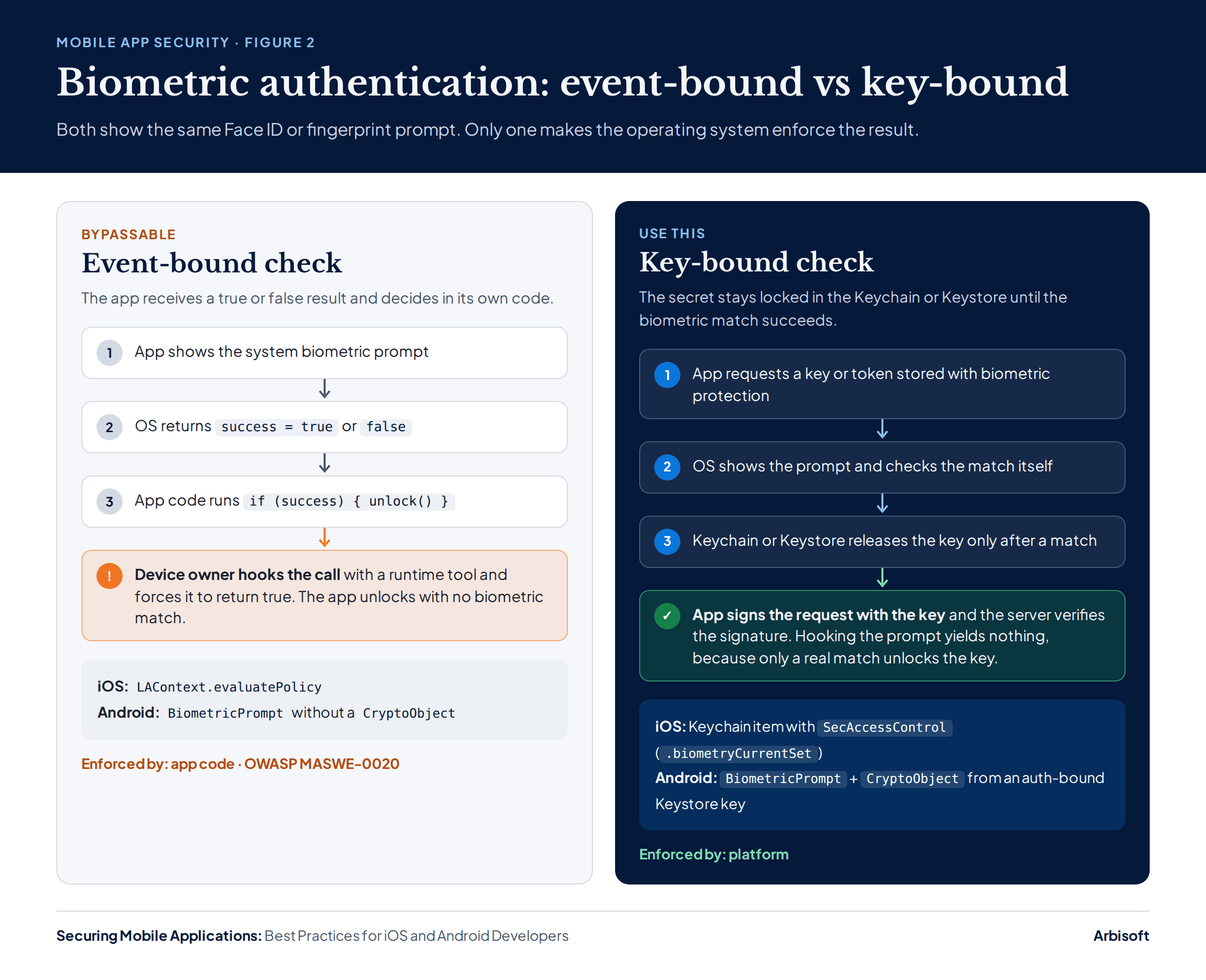
In the example payments app, the biometric check before a transfer releases a key that signs the transfer request, and the server verifies the signature. The server then holds cryptographic proof that a real biometric check took place, and no patched copy of the app can forge it.
There's a price, naturally. Key-bound credentials stop working when the user changes enrolled fingerprints or faces, so the app needs a fallback, usually a full sign-in, and the product team needs to know that fallback exists before a user meets it.
Access tokens should last minutes. Refresh tokens live longer, which makes them the prize. RFC 9700 requires refresh tokens for public clients to be either sender-constrained or rotated. With refresh token rotation, every refresh returns a new token and invalidates the old one, so a stolen copy stops working at the next legitimate refresh, and the server gets to notice the reuse.
Logout deserves more suspicion than it usually receives. Deleting tokens from the device feels like logging out, and from the user's point of view it is, yet any copied token stays valid until it expires. Logout has to revoke tokens on the server, and the same revocation should follow a password change or a fraud flag. On mobile, tokens mostly leak through backups, logs, compromised devices and misconfigured networks, all of which the storage and network sections pick apart.
The obvious fix for password guessing contains its own trap. The server should slow repeated failed sign-ins per account and per source, but a hard lockout after a handful of failures hands anyone who knows a username the power to lock that user out on demand. Progressive delays, bot challenges and self-service recovery limit guessing without creating that problem, and NIST's digital identity guidelines (SP 800-63B) favour throttling for exactly this reason.
Enforced by: Server (sessions, throttling) and Platform (biometric keys) · Tier: Baseline; key-bound biometrics from Sensitive Test: On a test device, hook the biometric callback and confirm protected data stays unavailable. After logout, confirm the old refresh token is rejected.
Mobile apps should store authentication tokens and keys in the iOS Keychain or in storage encrypted with an Android Keystore key, never in UserDefaults or plain SharedPreferences. On iOS, choose the strictest Keychain accessibility class the app can work with. On Android, new code shouldn't use EncryptedSharedPreferences, which Google has deprecated.
Before any of that, a simpler point: data the app doesn't need on the device is safest never written there at all. Fetch it when needed, hold it in memory, let it go.
UserDefaults is a plain plist file in the app's container, readable by anyone holding an unencrypted backup and a little patience, so secrets belong in the iOS Keychain. Each Keychain item's accessibility class decides when it can be read and whether it travels to a new device:
kSecAttrAccessibleWhenUnlockedThisDeviceOnly: readable only while the device is unlocked. A sensible default for tokens.kSecAttrAccessibleAfterFirstUnlockThisDeviceOnly: readable from the first unlock after a restart, even when locked again. Background tasks and notification extensions need this, and they pay for it with weaker protection.kSecAttrAccessibleWhenPasscodeSetThisDeviceOnly: available only while a passcode is set, and deleted if the user removes it. The strictest class.
Apple's Keychain documentation states that items with the ThisDeviceOnly suffix never migrate to a new device, so they are missing after a backup is restored onto different hardware. For a session token, that is usually exactly the behaviour worth wanting.
For files, the iOS Data Protection class NSFileProtectionComplete keeps a file unreadable while the device is locked. Any other cryptography, such as signing requests, should go through CryptoKit. Keys compiled into the app can be extracted, and home-made algorithms tend to fail in ways that stay invisible right up until someone competent takes a look.
The Android Keystore holds cryptographic keys. The app generates a key there, encrypts the value with it and stores the ciphertext, while the key itself stays in a Trusted Execution Environment (TEE) or, where present, a StrongBox chip. A TEE is an isolated area of the main processor; StrongBox is a separate secure chip.
The deprecation landed awkwardly. For years, EncryptedSharedPreferences from the Jetpack Security library was the standard answer to "where do tokens go on Android?", and then Google deprecated every API in that library and announced no further releases. Google's androidx.security.crypto reference now points developers to the Android Keystore directly for keys and to standard SharedPreferences or files for storage. Many teams pair a Keystore key with Tink for encryption and DataStore for storage. OWASP's testing guide treats existing EncryptedSharedPreferences code as a reasonable stopgap that shouldn't become the long-term plan. Some published guides still recommend it as current practice, which says something slightly uncomfortable about how often security advice gets re-checked after it's written.
Hardware isolation also has a cost that rarely shows up in architecture diagrams. One engineering team's benchmark measured StrongBox encryption at about 209 ms per operation, against about 7 ms for the TEE-backed Keystore on the same high-end phone. That is perfectly acceptable for decrypting a token once at sign-in, and painfully slow inside a loop.
Here token storage stops being a checklist item and starts producing strange bugs.
Android backups. allowBackup and the backup rules (dataExtractionRules on Android 12 and later) control what goes to cloud backup or to a new device. Android Keystore keys are never backed up. A restored app can therefore wake up holding an encrypted token with no key to decrypt it, a state that looks baffling in a crash report. Excluding these files from backup avoids the problem, and the app should treat "can't decrypt" as a perfectly ordinary signal to sign the user in again.
iOS reinstall. Keychain items have historically survived deleting and reinstalling an iOS app. An Apple engineer stated on the developer forums that this was never part of the API contract, which means a behaviour plenty of apps quietly depend on could change in some future iOS release. Maybe it never will. Building on it anyway seems unwise. In practice, a reinstalled app may find a refresh token it never expected to see, and a common fix stores a "has launched before" flag in UserDefaults (which is deleted with the app) and clears the app's Keychain items on a fresh install.
New devices. ThisDeviceOnly Keychain items and Android Keystore keys stay on the old phone, so users sign in again after switching. Telling the product team in advance turns what would have been a support ticket into a documented feature.
Data also escapes through channels nobody ever designed as storage:
Logger redacts interpolated strings as private by default. On Android, R8 can strip Log calls from release builds. Crash reporters and analytics SDKs often capture more than the app's own logs and deserve the same suspicious review.sceneWillResignActive. On Android, FLAG_SECURE blocks screenshots and the recents thumbnail, and setRecentsScreenshotEnabled(false) (Android 13) covers the thumbnail alone.isSecureTextEntry on iOS, password input types on Android) turn off suggestions and learning. Third-party keyboards that record or sync input are the larger risk. iOS apps can refuse custom keyboards, and Android apps can request IME_FLAG_NO_PERSONALIZED_LEARNING.
Enforced by: Platform · Tier: Baseline Test: On a test device, inspect the app container and a backup for tokens or personal data outside Keychain or Keystore-encrypted storage. Review the logs and crash reports from a test session.
Every iOS and Android app should keep its platform network settings strict: TLS only, no cleartext traffic and no trust in user-installed certificates. Certificate pinning adds protection against interception and can lock users out when certificates change. Pin only endpoints you control, with backup pins and a tested rotation plan.
iOS and Android both enforce secure network defaults these days, so most network weaknesses are self-inflicted. Somebody switched a default off to get past a development problem, and the switch stayed off.
On iOS, App Transport Security (ATS) requires HTTPS with modern TLS. NSAllowsArbitraryLoads or broad NSExceptionDomains entries in Info.plist almost always date from development and should be removed.
On Android, apps targeting Android 9 or later block cleartext HTTP by default. Since Android 7, apps also ignore user-installed CA certificates unless their Network Security Configuration (NSC) trusts them, and OWASP's MASTG test for this setting flags any configuration that does. A <certificates src="user"/> entry added for a debugging proxy, and then forgotten, quietly reverses that protection in production. The <debug-overrides> element exists for precisely this situation and applies only to debuggable builds, so the forgotten version has no excuse left.
Certificate pinning makes a mobile app trust only specific, pre-approved keys for its server, where the platform would normally accept any certificate a trusted authority issues. Pinning stops interception when a rogue certificate has been installed on the device or a certificate authority has been tricked into issuing one for your domain.
Few mobile security controls attract as many confident opinions, and the official sources themselves disagree. Android's documentation cautions against pinning, because a server change such as moving to a new certificate authority can cut the app off until users update. OWASP's network testing chapter reads the same caution as a call for precautions and recommends pinning for high-assurance apps, on endpoints the developer controls, with backup keys and an update strategy. Both positions are defensible, which is exactly why a decision rule beats a slogan here. Arbisoft's recommendation follows OWASP for high-risk apps:
| Pinning fits when | Pinning should wait when |
| The app is in the high-risk tier | The app is at baseline |
| You control the server and its certificates | The endpoint belongs to a third party, such as analytics or a CDN |
| Someone owns certificate renewal and has tested a rotation | Nobody owns certificate renewal |
| A pin update can ship before the old key retires | Users can't be required to update |
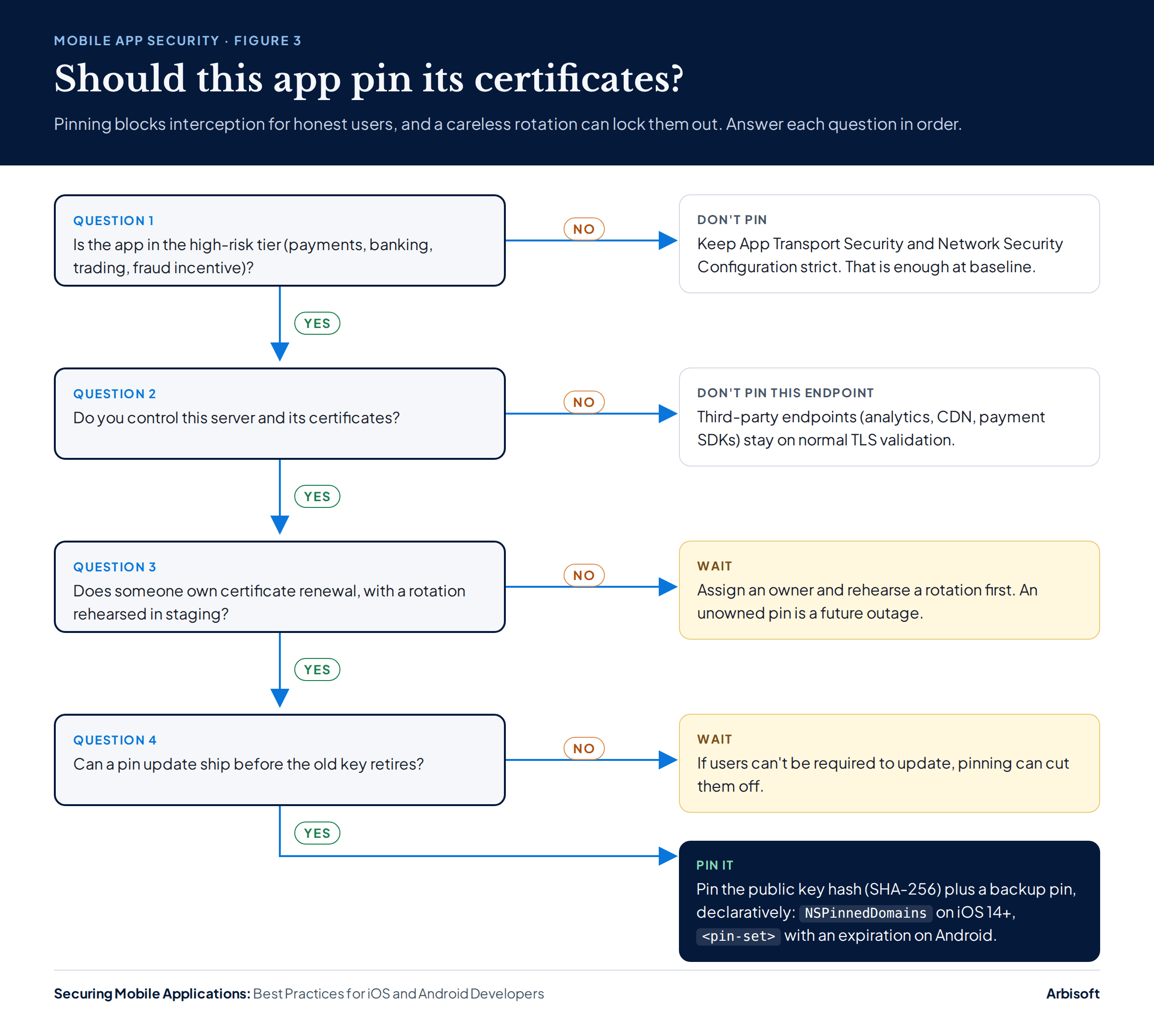
Pinning protects honest users from someone else on the network. Against the device owner it does very little, since the same hooking tools that defeat event-bound biometrics can switch pinning off. A team adopting pinning as an anti-reverse-engineering measure has bought the wrong tool and the full operational cost of owning it.
NSPinnedDomains in ATS on iOS 14 and later, and <pin-set> in NSC on Android. An expiration date on an Android pin set stops enforcement after that date, so a forgotten pin can't strand old installs.
The example payments app pins its payments API. Analytics and crash reporting stay on normal TLS validation, where a vendor's certificate change can't take the app down with it.
Enforced by: Platform, configured by the app · Tier: Strict defaults at Baseline; pinning at High-risk Test: Route traffic through an intercepting proxy with a user-installed CA and confirm the app refuses to connect. For pinned apps, also present a valid certificate with an unpinned key.
Deep links, Android intents, WebViews and screen overlays are all routes into a mobile app, and the input arriving through each one needs validating. Verified Universal Links and App Links are safer than custom URL schemes. Android components should stay unexported unless another app needs them, WebViews should run only the JavaScript they need, and sensitive Android screens need protection from overlays.
Custom URL schemes run on an honour system nobody would accept anywhere else in a security design. Any app can register mypaymentsapp://, and when two apps claim the same scheme, the system picks which one opens. For a link carrying an OAuth redirect, a password-reset token or a payment request, that is a lot of trust to place in the honour system. Universal Links on iOS and App Links on Android tie a link to a domain you prove you own (through apple-app-site-association and assetlinks.json files), so only your app handles it.
Deep link contents still need validating, even from a verified link. A deep link that opens a pre-filled "transfer £500 to account X" screen should never complete the transfer until the user confirms it with their own thumb.
An exported Android activity, service, broadcast receiver or content provider can be started by any app on the device. Since Android 12, components with intent filters must declare android:exported explicitly, and the safe value is false unless another app genuinely needs access. A PendingIntent handed to another app or to the system should be immutable (FLAG_IMMUTABLE) unless it has to be modified.
JavaScript is off by default in Android's WebView and on by default in iOS's WKWebView, so each page's need for it is worth a second look. JavaScript bridges (addJavascriptInterface on Android, script message handlers on iOS) carry the larger risk. A bridge is a door from web content straight into native code, and it deserves the scrutiny any door would get. A WebView with a bridge should load only pages you control.
Tapjacking is an Android attack in which an app with the "display over other apps" permission draws a transparent layer over another app and tricks the user into tapping something hidden underneath. Setting filterTouchesWhenObscured on sensitive controls, such as a "Confirm transfer" button, makes them ignore touches while another window covers them. On Android 12 and later, setHideOverlayWindows(true) hides non-system overlays on a sensitive screen, as Android's tapjacking guidance describes. iOS doesn't let third-party apps draw over other apps, so this particular worry stays on the Android side of the matrix.
Enforced by: Platform, configured by the app, with the server confirming sensitive actions · Tier: Baseline Test: Review the manifest for exported components. Send crafted intents and deep links from a test app. Check WebView settings on every screen that uses one.
Third-party SDKs run with the mobile app's permissions and can read its data. Keep an inventory, scan dependencies for known vulnerabilities on every build, and ship release builds with debugging disabled and no embedded secrets. A minimum app version enforced by the server lets you move users off a vulnerable release.
Every SDK added to an app is a stranger handed a key to the house. Analytics, advertising, crash reporting and payment SDKs all run inside the app's sandbox with its permissions and can read what the app reads, and an unused library sitting in the build adds attack surface with no benefit whatsoever.
A software bill of materials (SBOM) is a machine-generated list of every dependency and version in a build. It stays accurate in a way a hand-kept spreadsheet never quite manages. Scanning the SBOM on every build, with a failure threshold for severity, catches known vulnerabilities before they reach users.
Apple now enforces part of this. Since May 2024, apps adding an SDK from Apple's list of commonly used third-party SDKs must include that SDK's privacy manifest and, for binary SDKs, a valid signature.
Android release build types set debuggable to false by default, so the real check is that nothing overrides it somewhere in a forgotten Gradle file. On iOS, distribution signing removes the get-task-allow entitlement that lets debuggers attach. Test code, hidden debug menus and backdoor flags should be compiled out entirely, since attackers are very good at finding things that were merely hidden.
Secrets compiled into a mobile app, such as backend API keys, cloud storage credentials and payment-provider secret keys, are for practical purposes published. Calls that need a secret should go through your backend. On Android, R8 shrinking and obfuscation cost little and remove unused code as well as renaming the rest.
The server should know the minimum safe app version and refuse or limit requests from older ones, with a response the app turns into an update prompt. On Android, the immediate flow of the Play In-App Updates API can run the update itself. iOS has no equivalent, so the app sends users to the App Store. Forced updates frustrate users on slow connections and older phones, so they suit security fixes far better than feature launches, and a team that forces updates for every new feature will find users trusting the prompt less each time.
Enforced by: Build pipeline, plus the server for minimum version · Tier: Baseline Test: CI fails on a known-vulnerable dependency and on a debuggable release build. A secrets scan of the built app finds nothing. The server rejects a request from a version below the minimum.
Mobile app privacy depends on three practices: collect only the data each feature needs, ask for permissions when a feature needs them, and keep the published privacy declarations accurate, including what SDKs collect. On iOS these declarations are the privacy manifest and App Privacy details. On Google Play it is the Data safety section.
Permission requests land best when the user reaches the feature, with a clear reason attached. Narrower options reduce exposure too: the Android photo picker in place of full media access, approximate location wherever precise location isn't needed.
App Privacy details and the Data safety section are public statements, and they drift out of date more and more with every SDK update whose release notes nobody reads. An SDK that collects more than the app declares makes the declaration wrong, whatever the app's own code does, so both need reviewing whenever an SDK is added or updated.
Apps that let users create an account must also let them delete it from within the app. Apple requires this under App Store Review Guideline 5.1.1(v). Google Play's account deletion requirement asks for an in-app path plus a web page where users can request deletion. Consent and data rights under laws such as GDPR and HIPAA are legal questions beyond this guide.
Enforced by: The app, checked at store review · Tier: Baseline Test: Compare a network capture from a test session with the App Privacy and Data safety declarations.
Obfuscation, root and jailbreak detection, and tamper checks make a mobile app harder to attack, but someone who controls the device can still defeat them. They earn their cost mainly in high-risk apps. App Attest and Play Integrity carry more weight because the server verifies them, though the server should treat them as risk signals and keep its own authorization in place.
Hardening is the corner of mobile security most prone to theatre. Obfuscation renames classes and methods and can encrypt strings, making a decompiled app harder to read. Tamper detection checks whether the app has been modified or has a debugger attached. Both run in the app's own code, so a determined attacker can find and disable them, and a peer-reviewed study of hardening in 2,646 Android and iOS apps (IEEE EuroS&P 2025) warns that hardening done badly becomes "security theater."
Attackers going after a payments app are often running a business, and businesses respond to cost. Raising the cost per attempt has real value there. In a news app the same controls are mostly a line item on an invoice.
App attestation lets a server ask whether a request comes from a genuine, unmodified copy of the app on a genuine device. With App Attest on iOS, the app generates a key in the Secure Enclave, Apple attests to it once, and the app signs important requests with it. With the Play Integrity API on Android, the app requests a verdict that the server decodes and checks. Google turned down the older SafetyNet Attestation API in January 2025, so any codebase still calling it has a problem worth fixing this sprint.
The decision belongs on the server, and Apple is refreshingly direct about it. Apple's App Attest documentation says an app can't rely on its own logic to check itself, and leaves the response to a failed check to the server.
| Situation | Reasonable server response |
| Device doesn't support attestation | Allow, with lower limits or extra verification |
| Failed verdict on a low-value action, such as viewing a balance | Allow, log and monitor |
| Failed verdict on a high-value action, such as a transfer | Require a full sign-in, or block with an explanation |
| Attestation service unavailable or rate-limited | Allow low-risk actions; apply a pre-agreed rule for high-risk ones |
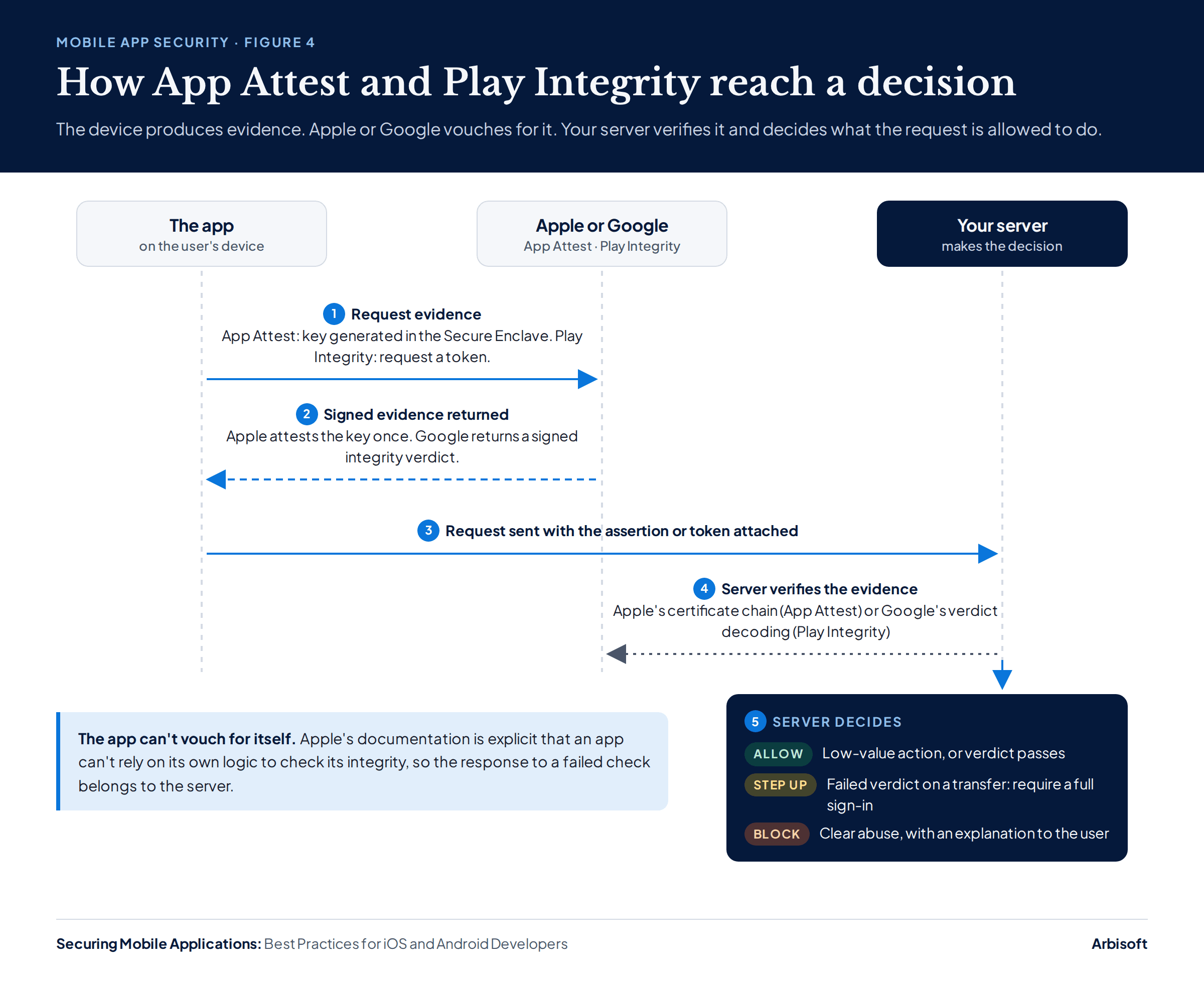
Apple recommends enabling App Attest for users in stages because the service is rate-limited, and the same caution suits Play Integrity. Measuring how many legitimate users fail before blocking anyone prevents a launch-day outage, and an outage caused by a security feature is a particularly awkward one to explain.
In the example payments app, a failed verdict leaves the app usable. Transfers above a small amount require a fresh sign-in, which costs a genuine user a few seconds and costs an attacker considerably more.
Root and jailbreak detection reports on the state of the device and says nothing at all about the user's intent. Plenty of legitimate users root their phones, whether for customisation, privacy tools or plain curiosity, and a determined attacker can hide root from a check running inside the app. So who, exactly, does a hard block stop? Mostly the honest users, which is an odd outcome for a security control. High-risk apps usually do better limiting sensitive actions or feeding the result into server-side risk scoring. On Android, the Play Integrity device verdict gives a similar signal with the decision made on the server, where it belongs.
Enforced by: App code (obfuscation, root and tamper detection) and server-verified signal (attestation) · Tier: High-risk; attestation as a signal from Sensitive Test: Run the app on a rooted or jailbroken test device and with a debugger attached. Confirm the server receives the failed signal and responds as designed.
iOS and Android app security follow the same principles with different APIs: Keychain and Keystore, App Transport Security and Network Security Configuration, App Attest and Play Integrity. The pairs look tidier in a table than they behave in practice, so comparing how each control is enforced tells a team more than comparing names.
Security area | iOS | Android | Enforced by |
Tokens and keys | Keychain, | Keystore key + encrypted storage (EncryptedSharedPreferences deprecated) | Platform |
Files | Data Protection classes | App-private storage + encryption | Platform |
Biometric sign-in | Keychain + |
| Platform |
Sign-in flow |
| Custom Tabs; passkeys via Credential Manager | Server + Platform |
Network defaults | App Transport Security | Network Security Configuration | Platform |
Certificate pinning |
|
| Platform |
App integrity | App Attest | Play Integrity API | Server-verified signal |
Links into the app | Universal Links | App Links; unexported components | Platform |
Screen protection | Hide content on resign-active |
| Platform |
Privacy declarations | Privacy manifest, App Privacy details | Data safety section | Store review |
Mobile app security testing works best when each control has a specific test. Automated checks in CI cover configuration, dependencies and hardcoded secrets on every build. Device-based tests from the OWASP Mobile Application Security Testing Guide (MASTG) cover storage, authentication and network behaviour before major releases. Each result should be recorded.
A control nobody has tested is an assumption with a ticket number. The testing that follows exists to turn those assumptions into facts, one at a time.
In CI on every build: dependency vulnerability scanning; secrets scanning of the source and the built package; configuration checks for the debuggable flag, exported components, ATS exceptions, NSC trust in user CAs and WebView settings; and static analysis. These checks are cheap, and they should have the authority to block a release.
On a device before major releases, and after major changes to authentication, storage or networking: where tokens actually land on disk and in backups; whether biometric protection survives a hooked callback; whether the app refuses an intercepting proxy; how the server handles replayed and modified API requests. The MASTG has platform-specific procedures for each MASVS control. An external penetration test adds an independent view on top of this routine, and it works best arriving at an app whose team already knows what the tester will probably find.
As evidence: the test, date, build and result for each control, plus the fix and re-test for any failure. That record answers "how do you know?" from a CTO, an auditor or a customer's security questionnaire, a question that tends to arrive at the least convenient moment.
For a mobile app already in production, fix in order of protection: server-side authorization and sessions first, then token storage and network configuration, then data leaks, with hardening last and only where the tier calls for it. Teams modernizing an existing app can use the checklist below as a remediation order, since it follows the same sequence.
Before each release, every item for the app's tier needs an owner, a test and a recorded result. The owners shown are examples, and the only wrong answer is "everyone," which in practice means nobody.
| Item | Tier | Owner | Test |
| Every endpoint checks the user may access that specific record | Baseline | Backend lead | Replay with another user's ID |
| Sessions revoked on the server at logout and password change | Baseline | Backend lead | Old refresh token rejected after logout |
| Sign-in through the system browser with PKCE, or passkeys | Baseline | Mobile lead | Code review and flow test |
| Tokens and keys only in Keychain or Keystore-backed storage | Baseline | Mobile lead | Container and backup inspection |
| No cleartext, no user-CA trust, ATS exceptions justified | Baseline | Mobile lead | CI config check and proxy test |
| No sensitive data in logs, crash reports, snapshots or notifications | Baseline | QA | Log review and app-switcher check |
| Exported components, deep links and WebViews reviewed | Baseline | Mobile lead | Manifest review and crafted intents |
| No known high-severity dependency vulnerabilities | Baseline | DevOps | CI dependency scan |
| Release build not debuggable, no embedded secrets | Baseline | DevOps | CI checks |
| Privacy declarations match observed behaviour | Baseline | Product and mobile lead | Network capture vs declarations |
| Server enforces a minimum app version | Baseline | Backend lead | Old-version request rejected |
| Biometric sign-in is key-bound | Sensitive | Mobile lead | Hooked-callback test |
| Attestation verified on the server with a planned failure response | Sensitive, High-risk | Backend lead | Failed-verdict test |
| Pinning with backup pins and a rehearsed rotation | High-risk | Mobile and infrastructure | Unpinned-key test and staged rotation |
| Root and tamper detection with a planned response | High-risk | Mobile lead | Rooted or jailbroken device test |
Assurances cost nothing to give, which is why these eight questions ask a mobile team for evidence, each paired with the kind of answer worth trusting.
In the iOS Keychain or in storage encrypted with an Android Keystore key, never UserDefaults or plain SharedPreferences. On iOS, a ThisDeviceOnly accessibility class keeps tokens from migrating to a new device.
Google has deprecated every API in the Jetpack Security Crypto library, EncryptedSharedPreferences included, and plans no further releases. Google's reference docs point to the Android Keystore directly, and OWASP treats existing use as a stopgap.
Pinning suits high-risk apps whose team controls the server certificates and has rehearsed a rotation. Android's docs warn a certificate change can lock users out until they update.
Attackers with full access to the device can hook a biometric prompt that only reports success or failure. Binding a Keychain item or Keystore key to the biometric match closes that gap.
Cross-platform apps rely on the same Keychain, Keystore and network stacks, usually reached through plugins. Each plugin handling secrets or networking needs review, and the JavaScript or Dart layer adds its own attack surface.
OWASP certifies no apps, vendors or testers, so official MASVS certification doesn't exist. Vendors can test an app against MASVS and list which controls pass.
Before each major launch, after big authentication or payment changes, and at least yearly for high-risk apps. No standard sets this schedule, so Arbisoft ties it to the app's risk tier.
Most of this guide reduces to a single habit: before trusting a security control, ask where its decision is actually made. Put the real decisions on your server and in the iOS and Android platforms' protected APIs, treat attestation as evidence to weigh, add in-app hardening when the app's risk earns it, and call a control finished only once a test says so. None of it is glamorous, and done consistently it keeps a reasonable decision made the afternoon before a release from turning into next year's incident report.
Planning a new mobile application or reviewing an existing one? Discuss the architecture, integration and security requirements with Arbisoft's mobile app development team.
...Loading Related Blogs
Trusted by top platforms for our transformative solutions and exceptional results: